
Drag and Drop
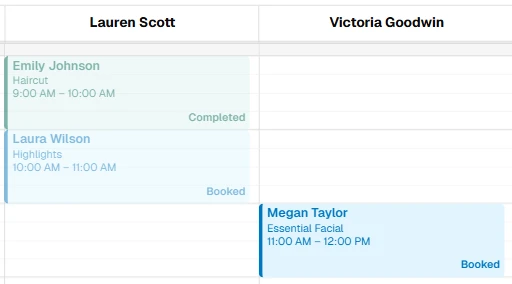
Drag and drop is the fastest way to reschedule on the calendar. Move appointments and time blocks to a new time, resize them, or — in Day view — reassign an appointment to another staff member. Changes save automatically.
Moving Appointments
- Click and hold an appointment
- Drag it to the new time (or another day in Week view)
- Release to drop — the update saves immediately
In Day view, you can also drag an appointment into another staff member's column to reassign it.
Adjusting Duration
- Hover over the bottom edge of an appointment or time block
- Drag up or down to change the length
- Release when the duration looks right
The calendar snaps to 15-minute increments while you drag.
Time Blocks
Time blocks work the same way — drag to move, resize from the bottom edge to change how long the block lasts.
Limits to Know
Appointments and blocks must stay within the same day (they cannot cross midnight), and the maximum duration is 12 hours. The calendar prevents overlapping appointments for the same staff member.
Staff users can view the calendar but cannot drag or resize events.
What's Next?
Helpful Hint
Use drag and drop for quick adjustments, then open the appointment form if you need to change the client, service, or send a notification.