
Location Settings
Go to Settings → Locations to manage each business location — address, contact details, hours, and closed dates. If you have multiple locations, use the location dropdown at the top to switch between them.
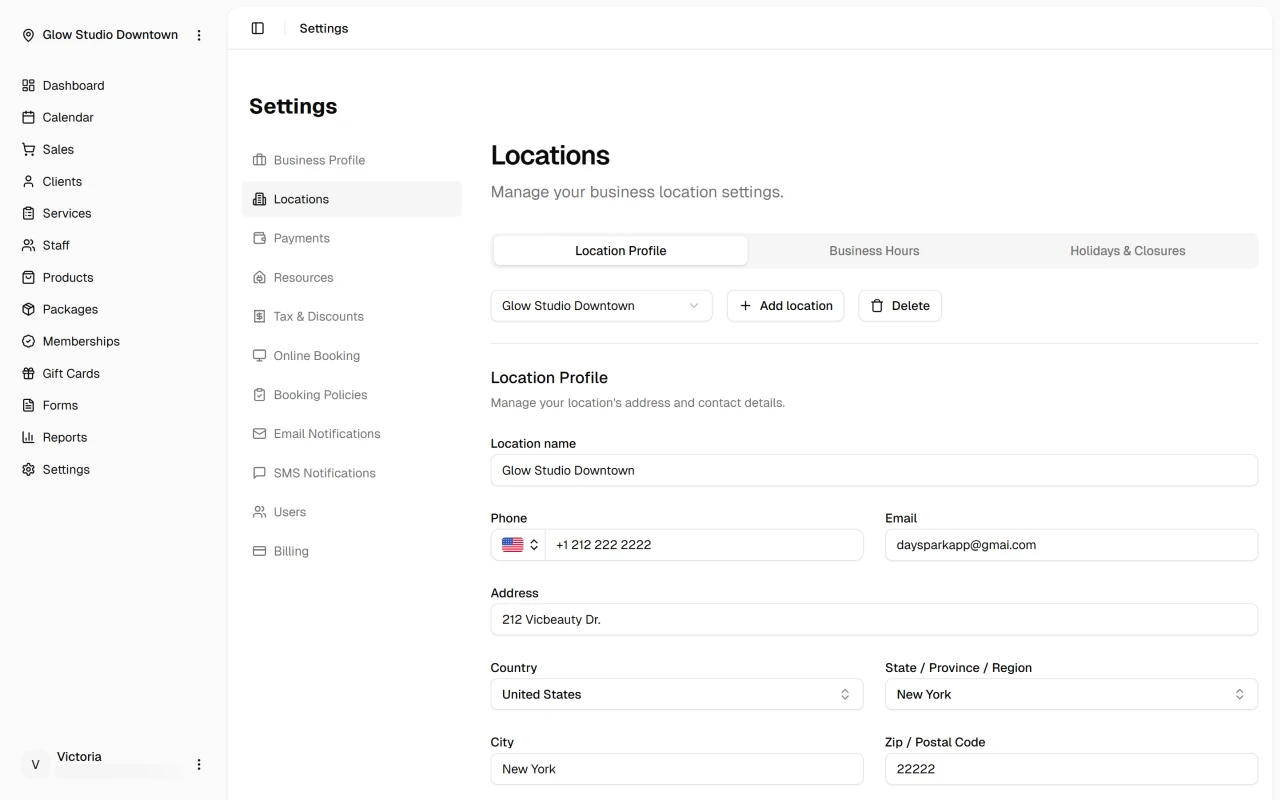
Add a location
Click Add location and complete the setup steps: name, phone and email, address and timezone, then business hours. Your plan limits how many locations you can add.
When you have more than one location, Delete removes the selected location.
Location profile
The Location Profile tab holds contact and address details for the selected location:
- Location name, phone, and email
- Address, country, state/province, city, and postal code
- Timezone — used for scheduling and notifications
- Currency — set automatically from the country
- Tax rate — optional; assign a rate created in Tax and discounts
Click Save after making changes.
Business hours
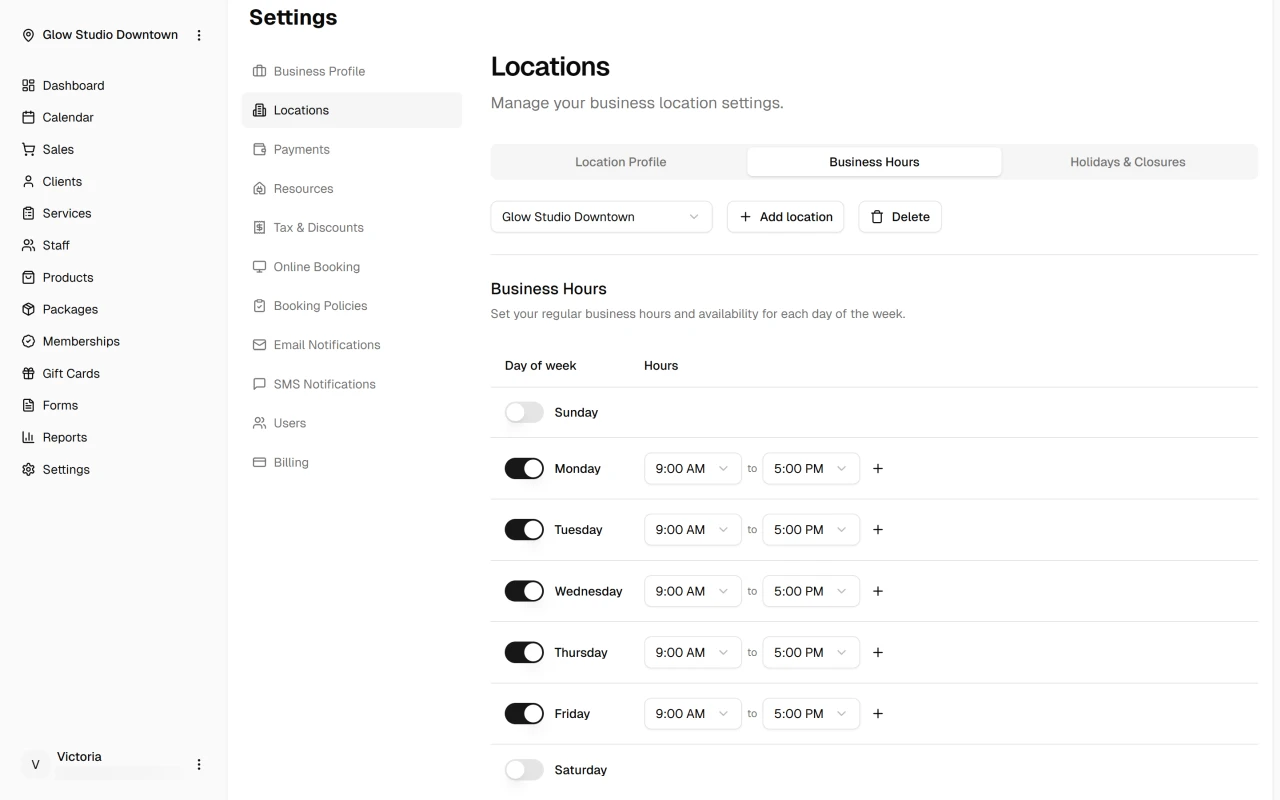
On the Business Hours tab, set regular open hours for each day of the week. These hours control when clients can book online and when staff appear available.
Click Save when you update the schedule.
Holidays and closures
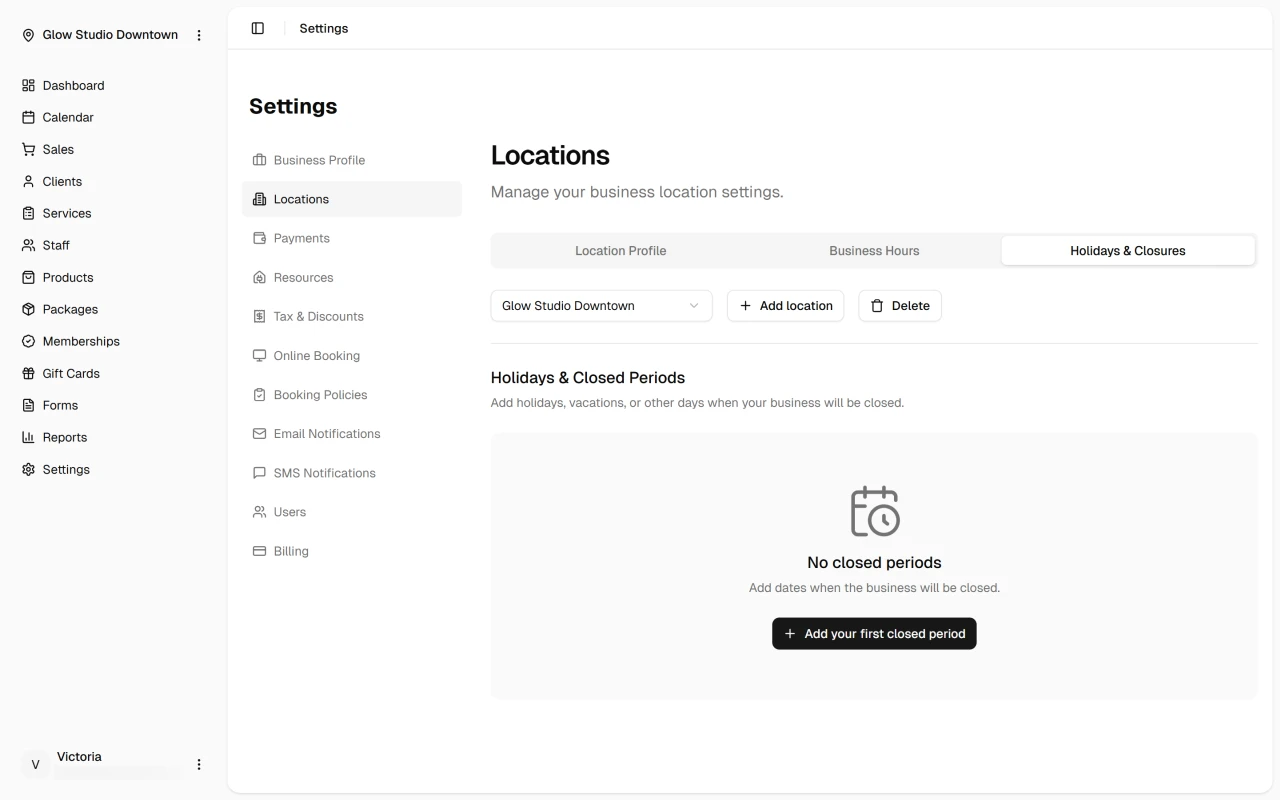
On the Holidays & Closures tab, add dates when the location is closed — holidays, vacations, or other closures. Clients cannot book on closed dates.
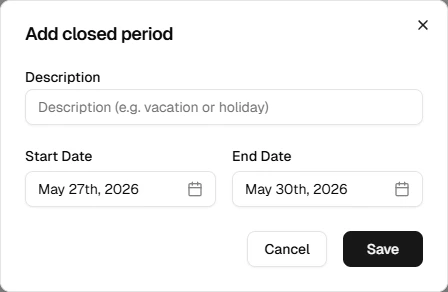
Click Add closed period to create one, or edit and remove existing entries from the list.
What's next?
- Business settings
- Notification settings
- Staff — assign team members to locations