
Client Wallet
The Wallet tab in a client’s profile stores saved payment methods (cards on file). These cards can be charged at checkout without re-entering card details.
Accessing the Wallet
- Open Clients and select a client
- Click the Wallet tab
The Wallet tab is only visible when the Sales feature is enabled and Stripe is connected for the selected location.
Adding a Card
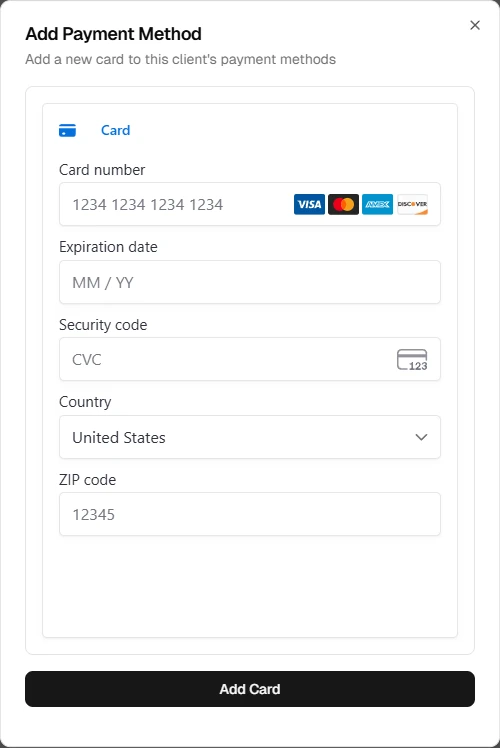
- In the Wallet tab, click Add card
- Enter the card details in the secure Stripe form
- Click Add card to save
Cards are stored per client per location. A client can have up to 3 saved cards per location. If the limit is reached, remove an existing card before adding a new one.
Managing Cards
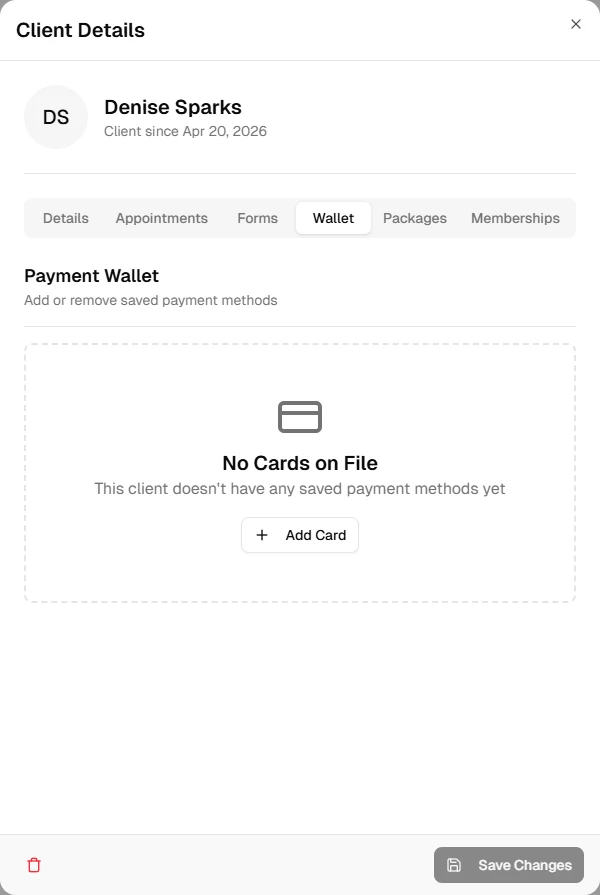
- Set as default – The default card is used first when charging at checkout. Click the star icon to set a card as default
- Delete – Click the trash icon to remove a card. You’ll be asked to confirm
Expired cards are shown but cannot be used. Delete them and add a new card.
Requirements
- Stripe Connect must be connected for the location
- The client must be viewed in the context of a location (e.g., from the Calendar or with a location selected)
If Stripe isn’t connected, the Wallet shows a message with a link to complete setup (admin users only).