
Enrolling Clients
Enrolling a client subscribes them to a membership plan. Their card is charged immediately and then recurs automatically on the same date each billing period.
Requirements
- The client must have a saved card on file for the location where you're enrolling them
- The membership plan must be active (not archived)
- Stripe Connect must be set up for the location
If the client doesn't have a card on file, add one first from their Wallet tab — see Client Wallet.
Enrolling a Client
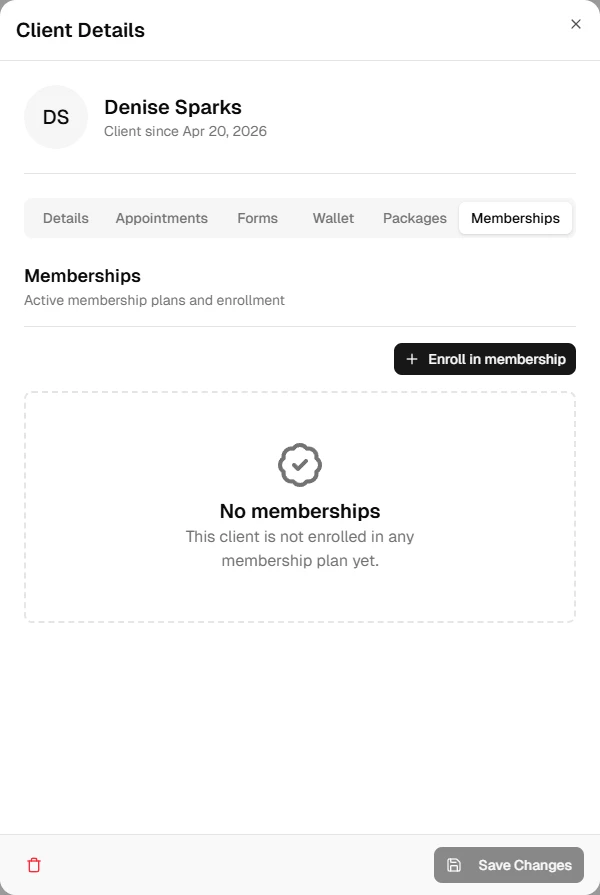
- Open Clients and select the client
- Click the Memberships tab
- Click Enroll in Membership
- Select a location and a membership plan:
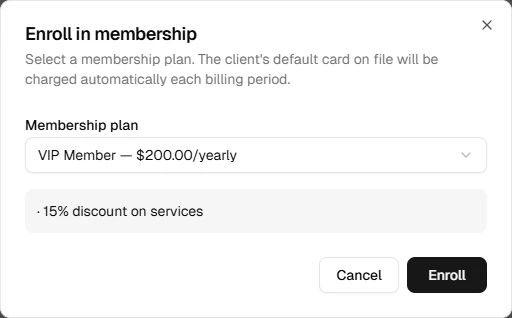
- Click Enroll
The client's saved card is charged immediately for the first billing period. Session credits are created right away so the client can redeem benefits on the same day they enroll.
TIP
Enrollment is always initiated from the client's profile. There is no bulk enrollment — each client must be enrolled individually.
Viewing an Enrollment
The Memberships tab shows all of the client's memberships — active, canceled, or pending. For each enrollment you can see:
- Plan name, price, and billing interval
- Current period start and end dates
- Status (Active, Canceled, Incomplete)
- Current session credit balances (remaining vs. total per period)
To cancel a membership, see Canceling a membership.
Billing and Stripe
Membership billing is handled entirely through Stripe. The recurring charge appears on the client's card statement. Payments, invoices, and subscription history can be viewed in the Stripe Dashboard (admin users).
If a payment fails (e.g., expired card), the subscription status moves to Incomplete. Stripe will retry the charge automatically. The client should update their card on file to resolve a failed payment.