
Managing Product Categories
Categories help organize your product catalog into logical groups. Good category management makes it easier for staff to find products at checkout and keep your catalog structured.
Understanding Categories
Categories in DaySpark work like sections in a product menu:
- Group similar products together
- Filter the product list on the Products page
- Organize the product dropdown at checkout by category
Creating a New Category
Step 1: Access the Products Page
- Navigate to Products in the sidebar
Step 2: Add a New Category
- Click Add New in the top right corner
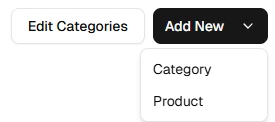
- Select Category from the dropdown menu
Step 3: Fill Out Category Information
- Category name – Enter a clear, descriptive name (required)
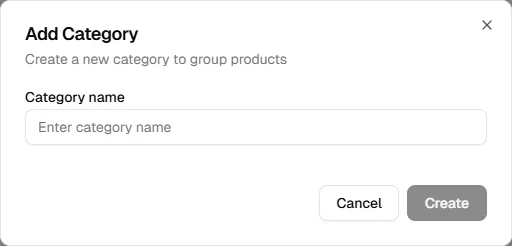
Step 4: Save the Category
- Click Create to save the new category
- The category is available when adding or editing products
Managing Existing Categories
Click Edit Categories on the Products page to:
- Rename a category using the pencil icon
- Delete a category using the trash icon
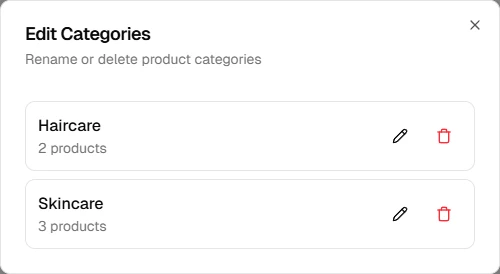
When deleting a category that contains products, you can move those products to another category or leave them uncategorized.
Best Practices
- Use descriptive names staff will recognize at checkout
- Keep categories focused on product type (e.g., "Retail", "Skincare")
- Avoid creating overlapping categories
- Review and update categories as your inventory changes
What's Next?
After organizing your categories:
Helpful Hint
Create categories before adding products so you can assign each item to the right group from the start.