
Creating Membership Plans
Membership plans are managed from Memberships in the sidebar. Each plan defines the price, billing interval, and what benefits enrolled clients receive.
Creating a Plan
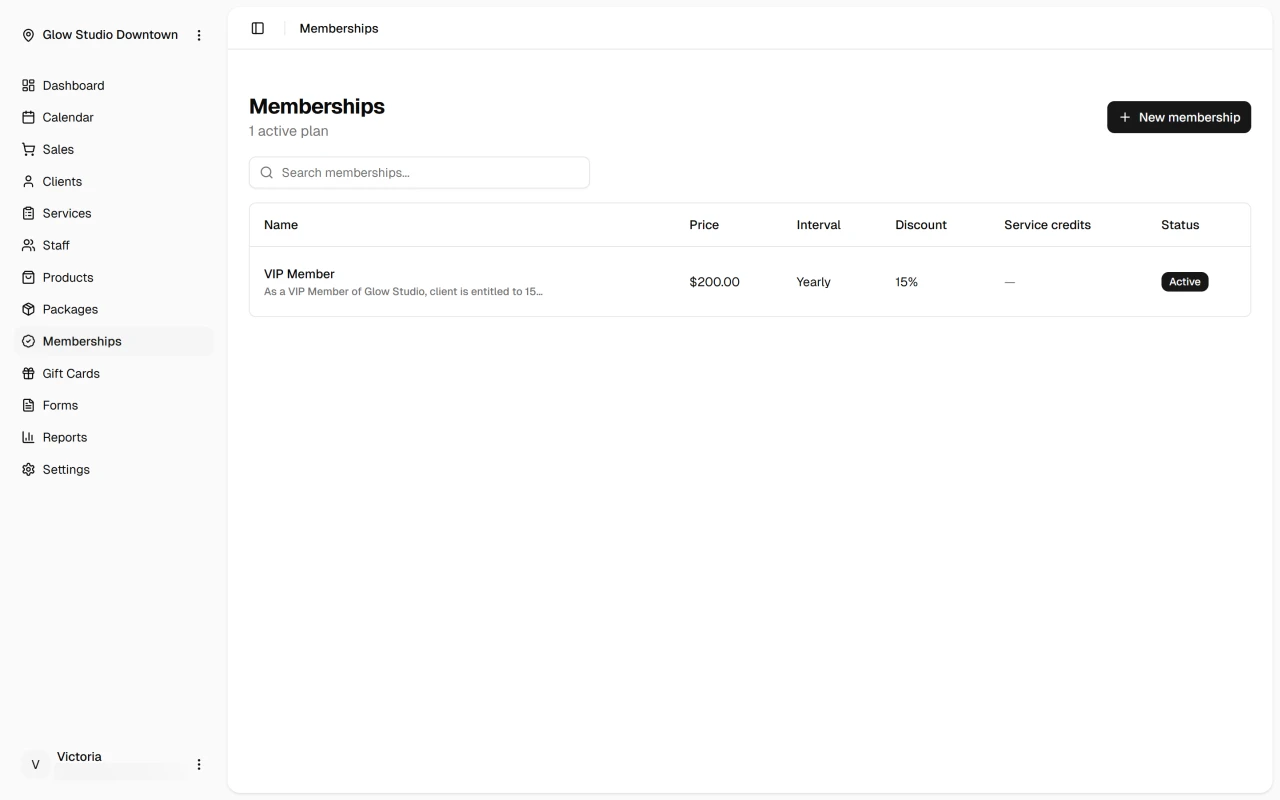
- Go to Memberships in the sidebar
- Click New Membership
- Fill in the plan details:
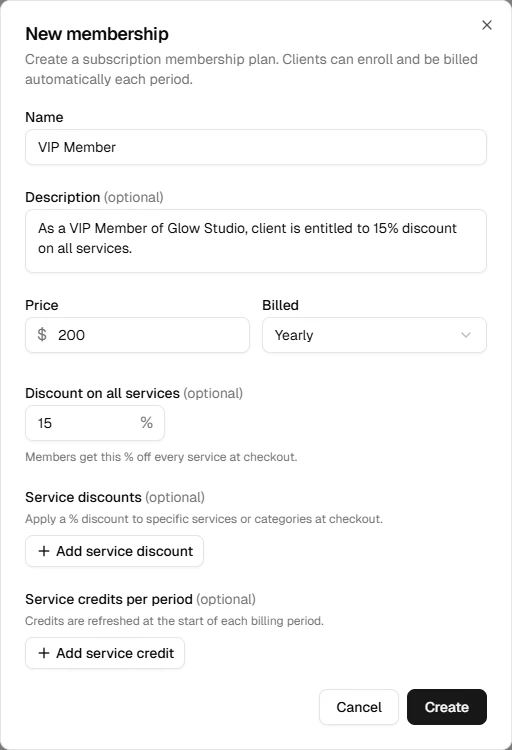
- Name – Displayed on client enrollments and receipts (e.g., "Gold Member", "Monthly Unlimited")
- Description – Optional summary shown to staff
- Price – The recurring charge amount per billing period
- Billing interval – Monthly or Yearly
- Add one or more benefits (see below)
- Click Save
Adding Benefits
Each benefit gives enrolled clients either complimentary sessions or a discount. A plan can have any combination of benefit types.
Session Credit Benefit
Grants the client a fixed number of free sessions for a specific service each billing period.
- Service – The specific service the credit applies to
- Quantity – How many free sessions per period (e.g., 2)
Credits reset on the 1st of each calendar month. Unused credits from the previous month do not carry over.
Discount Benefit
Grants the client a percentage discount on a service, a category of services, or all services.
- Scope – Choose All services, a specific Service category, or a specific Service
- Discount – The percentage off (e.g., 20%)
Multiple discounts at checkout
If a plan includes both All services and service or category discounts, checkout applies the service or category discount.
Editing a Plan
- In Memberships, click the plan to open it
- Edit the name, description, price, interval, or benefits
- Click Save
INFO
Pricing changes do not affect existing subscriptions. Current members continue billing at the original price. Only new enrollments use the updated price.
Benefit changes take effect immediately for active members. Adding a new credit benefit seeds the credits right away; removing one cancels future credits but does not claw back credits already issued for the current period.
Archiving a Plan
Archiving a plan prevents new enrollments but does not cancel existing ones. Active enrollees continue their billing and benefits until they cancel.
- Open the plan
- Click Archive
Archived plans are hidden from the enrollment flow but remain visible in the plan list with an "Archived" label.