
Managing Categories
Categories help organize your services into logical groups. Good category management makes it easier for both staff and clients to find the services they need.
Understanding Categories
Categories in DaySpark work like sections in a menu:
- They group similar services together
- Help organize your service list
- Make navigation easier for clients
- Improve service findability
- Maintain clear structure
Creating a New Category
Step 1: Access the Services Page
- Navigate to the Services page in your DaySpark application.
- You'll see a list of your current service categories and services.
Step 2: Add a New Category
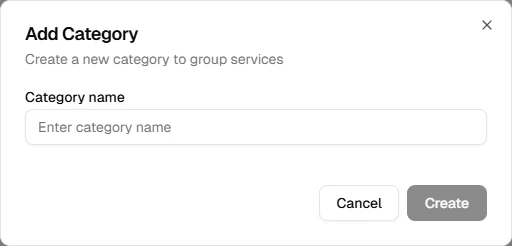
- Click the "Add New" button in the top right corner of the page.
- Select "Category" from the dropdown menu that appears.
- A dialog will open for you to enter the category details.
Step 3: Fill Out Category Information
- Category Name: Enter a clear, descriptive name that clients will understand (required field).
- The system will automatically position the new category at the end of your list.
Step 4: Save the Category
- Review the category name you've entered.
- Click "Create" to save the new category.
- The category will be added to your services page and available for organizing services.
Organizing Your Categories
Step 1: Reorder Categories
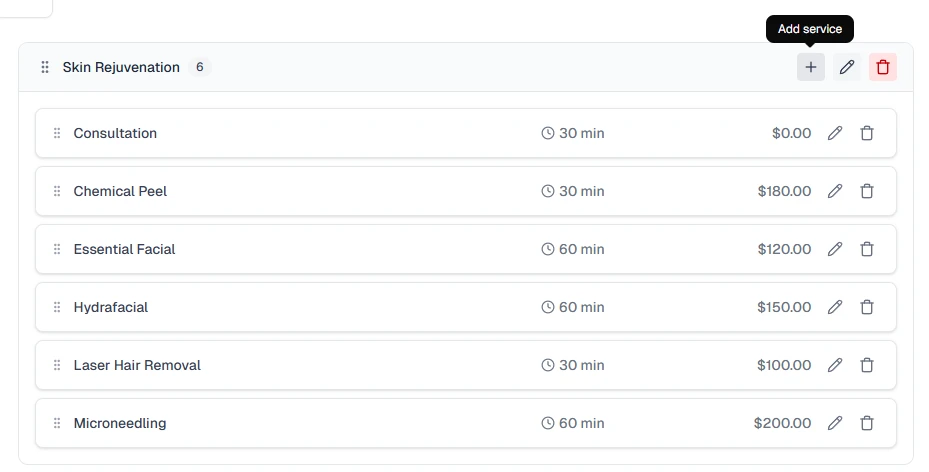
- On the Services page, you can drag and drop categories to reorder them.
- Click and hold the grip handle (⋮⋮) next to a category name to drag it to a new position.
- Place the most important or popular categories first in your list.
Step 2: Edit Category Names
- Click the pencil icon (✏️) next to any category name to rename it.
- A dialog will open where you can update the category name.
- Click "Update" to save your changes.
Step 3: Delete Categories
- Click the trash icon (🗑️) next to a category name to delete it.
- Important: You can only delete categories that have no services assigned to them.
- If a category contains services, you'll need to move or delete those services first.
- A confirmation dialog will appear before the category is permanently deleted.
Best Practices
Clear Structure
- Use descriptive names that clients will understand
- Keep categories focused on specific service types
- Avoid creating overlapping categories
- Maintain consistent naming conventions
- Review and update categories regularly
Logical Grouping
- Group similar services together (e.g., "Hair Services", "Skin Treatments")
- Consider how clients think about your services
- Make navigation intuitive and user-friendly
- Keep a balanced number of categories (not too many, not too few)
- Update categories as your service offerings evolve
Tips for Success:
- Create categories that make sense to your clients, not just your internal organization.
- Use consistent naming - avoid mixing singular and plural forms.
- Consider seasonal categories for time-limited services.
- Test your category structure by asking clients to find specific services.
What's Next?
After organizing your categories:
Helpful Hint
Create categories that make sense to your clients. Organize services the way clients think about them, not just how you organize them internally.