
Managing Time Blocks
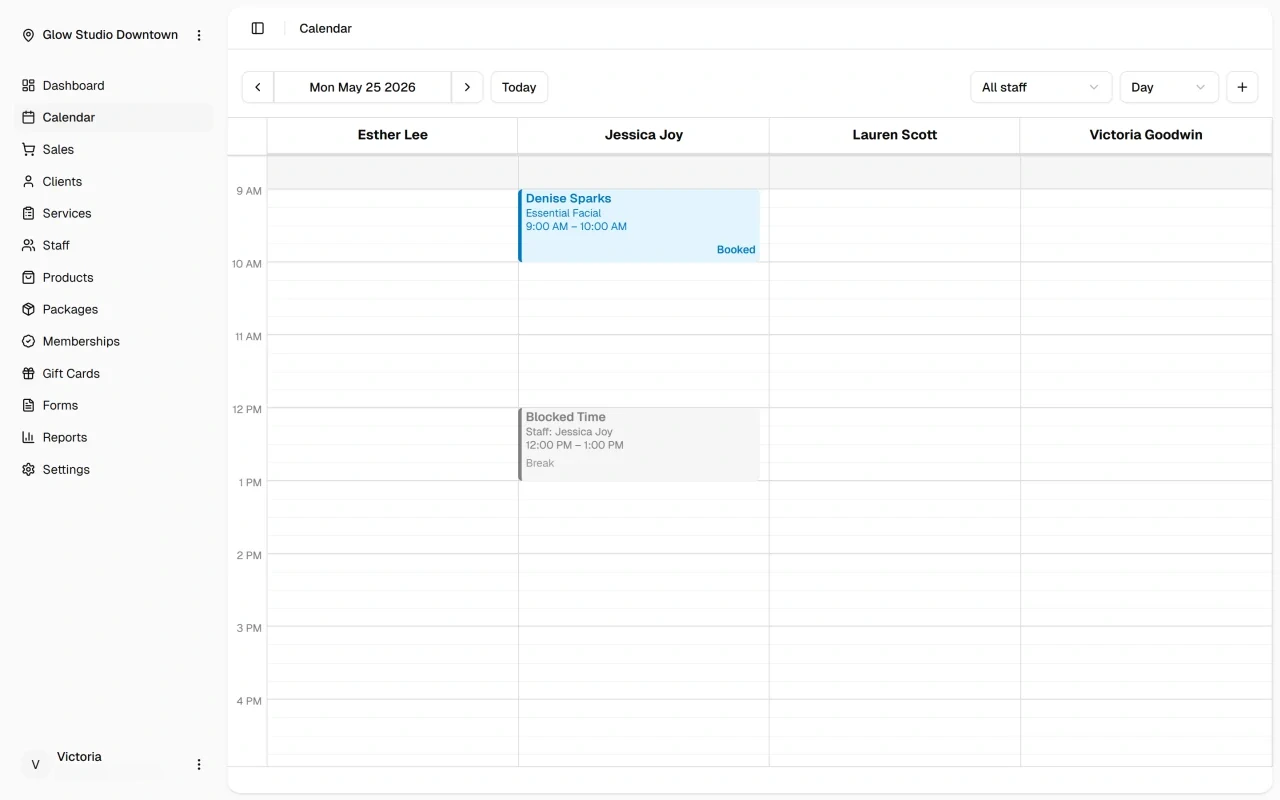
Time blocks mark periods when a staff member is unavailable for appointments — breaks, meetings, prep time, or admin work. During a time block, that staff member will not appear as available for online booking.
Creating a Time Block
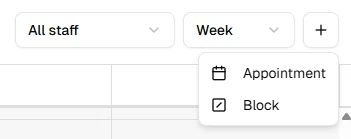
- Click Add (Plus Button) in the calendar toolbar and select Block
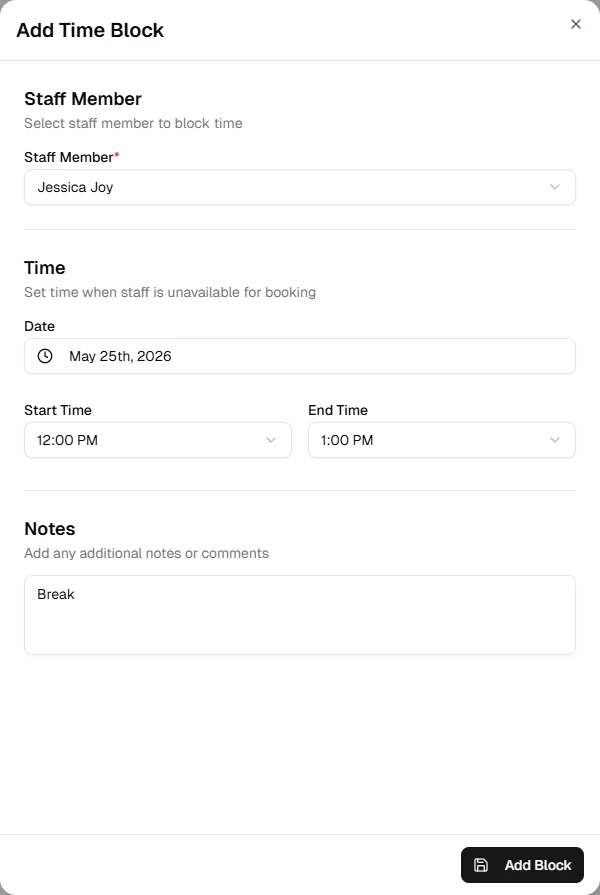
- Choose the staff member, date, and time range
- Add optional notes, then save
Editing and Moving Blocks
To edit a block:
- Click the block on the calendar
- Update the details in the form
- Save your changes
You can also drag a block to a new time or resize it from the bottom edge — see Drag and drop.
Blocks show in Week and Day view. Month view hides them to keep the overview clean.
What's Next?
Helpful Hint
For regular weekly breaks, set them in the staff schedule instead. Time blocks are best for one-off or temporary unavailability.