
Assigning Forms to Services
Assigning forms to services helps clients complete required information before appointments, keeping your records organized and your booking process smooth.
INFO
Clients automatically receive links to complete assigned forms in their booking confirmation email.
Creating Service Assignments
To assign a form to a service:
- Go to the Forms section
- Find the form you want to assign
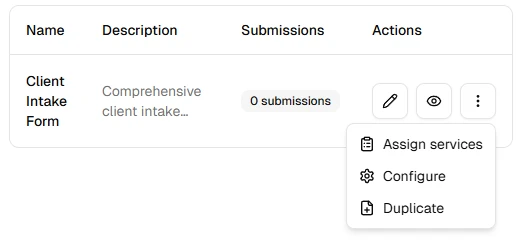
- Open the actions menu and click Assign Services
- Select the services that should use this form
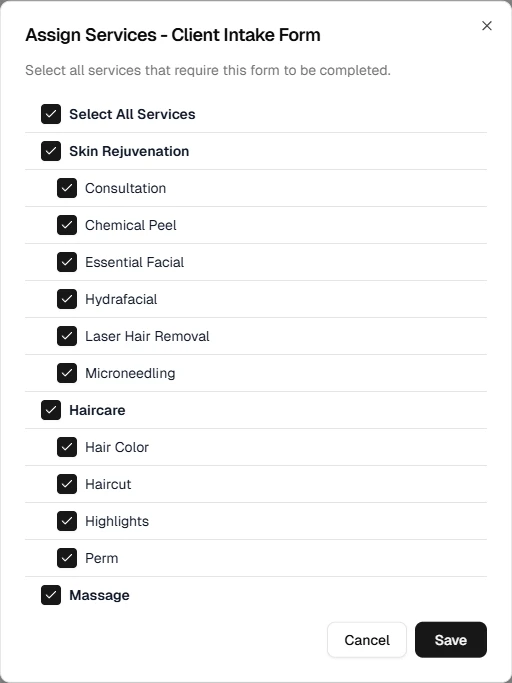
- Save your changes
You can assign a single form to multiple services if they need the same information (e.g., client intake).
Best Practices
To manage form assignments effectively:
- Review service requirements regularly to ensure each service has the appropriate forms assigned
- Update form assignments when you add new services or create new forms that better fit your workflow
- Check client completion rates and consider adjusting required forms as needed
What's Next?
Learn more about:
Helpful Hint
Only assign essential forms to services to avoid overwhelming clients with paperwork. Consider making additional forms optional when appropriate.