
Assign Staff Services
Assign services to staff members so they can be booked for those services. This determines which services each staff member can provide to clients.
Assigning Services to Staff
Step 1: Access Staff Management
- Navigate to the Staff page in DaySpark.
- Click on any staff member's name to open their profile.
Step 2: Go to Services Tab
- In the staff member's profile, click on the "Services" tab.
- You'll see a list of all available services organized by category.
Step 3: Select Services
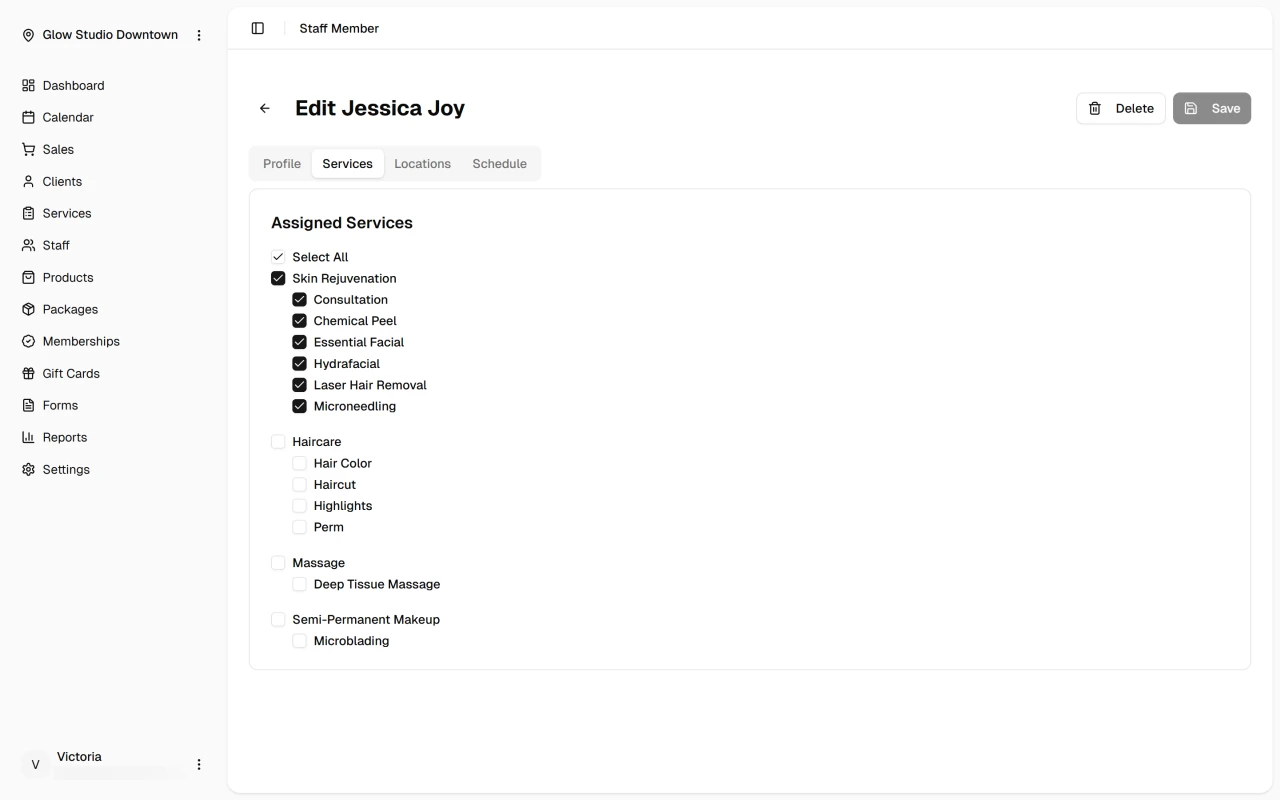
- Use the "Select All" checkbox to assign all services at once, or
- Check individual categories to assign all services in that category, or
- Check individual services to assign them one by one
- Empty categories will be disabled and show "No services in this category"
Step 4: Save Changes
- Click "Save" to apply the service assignments.
- The staff member will now be available for booking for the selected services.
Managing Service Assignments
You can easily update service assignments by checking or unchecking services in the Services tab. Staff members will only be available for booking services they're assigned to.
What's Next?
After assigning services:
Quick Tip
Start new staff with a core set of services they're most confident in, then gradually expand their service list as they demonstrate consistency and comfort with existing offerings.