
Calendar Overview
Your calendar is the heart of your business operations in DaySpark. It helps you manage appointments, coordinate staff schedules, and ensure smooth service delivery.
Understanding Your Calendar
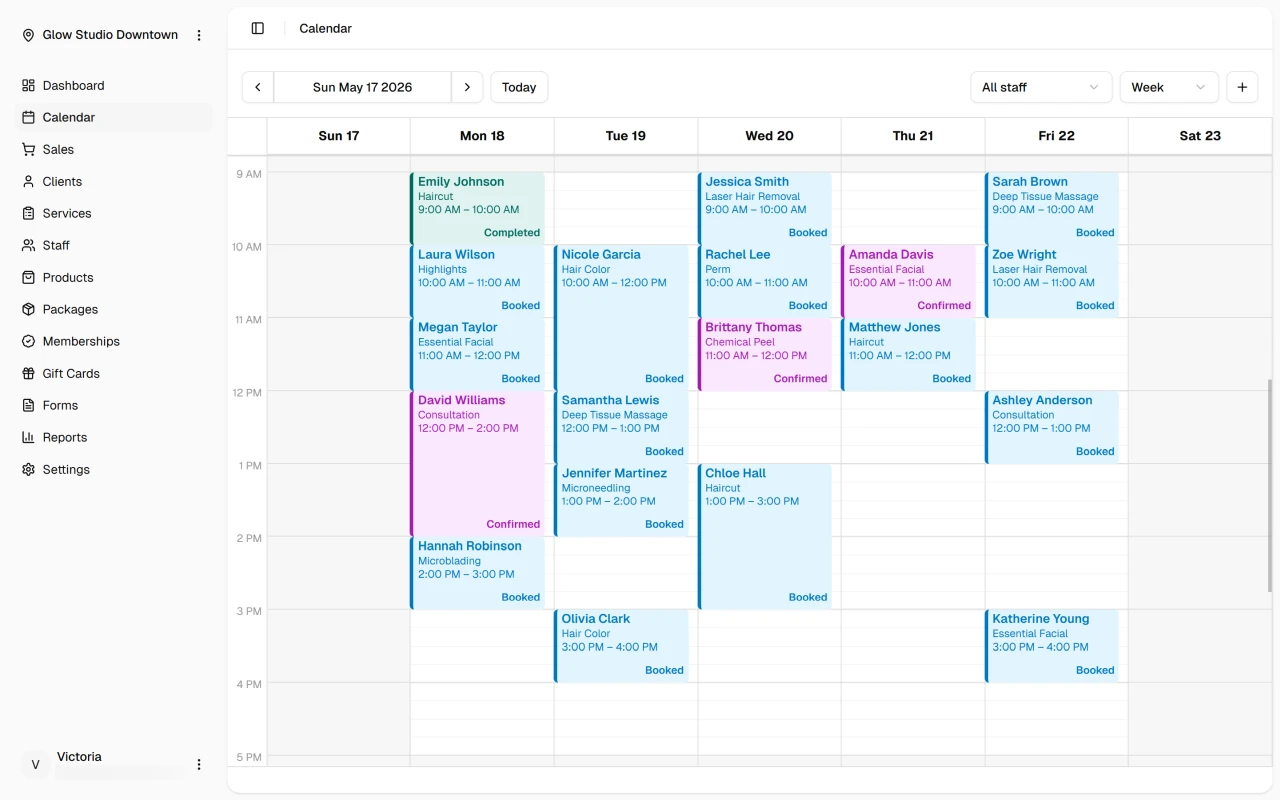
When you first open the calendar, you'll see Week view — a full week of appointments and time blocks across your team. You can switch to Day view for detailed single-day scheduling or Month view for longer-range planning. See Calendar Views for when to use each.
Working with Your Calendar
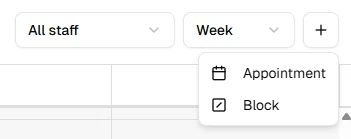
The toolbar at the top is where most day-to-day actions live. Use the arrows or date picker to move between dates, click Today to jump back to the current day, and open the Add menu to create an appointment or time block.
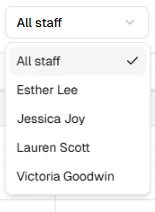
Use the staff filter to show everyone at once or focus on a single team member's column.
You can also click an empty time slot to start scheduling, drag across slots to set a duration, or click an existing appointment to view or edit it.
Next Steps
Helpful Hint
Start your day in Week view to see the full picture, then switch to Day view when you need to manage a busy schedule in detail.