
Checkout from Calendar
You can start checkout directly from an appointment in the Calendar. The client and services are pre-filled from the event.
Opening Checkout from an Appointment
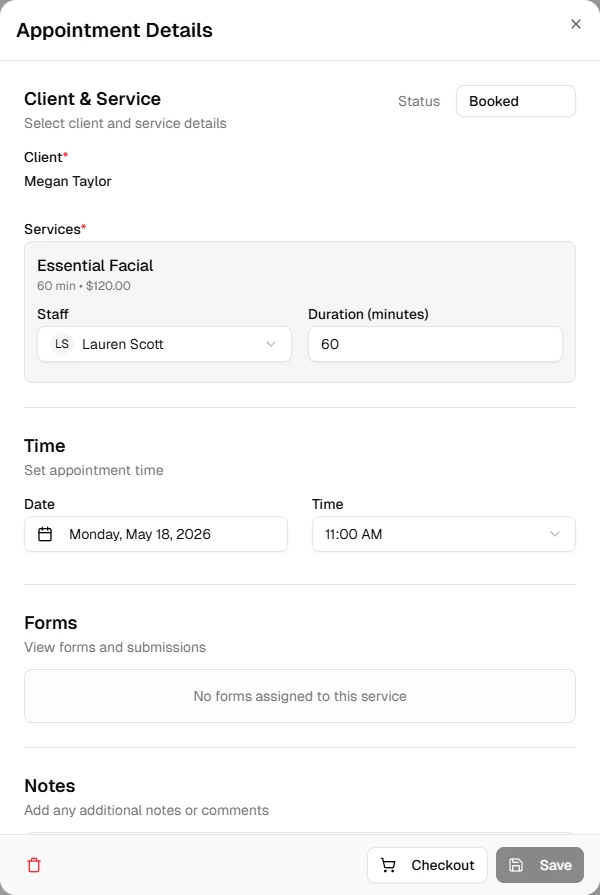
- Open the Calendar
- Click an appointment to open the event drawer
- Click Checkout
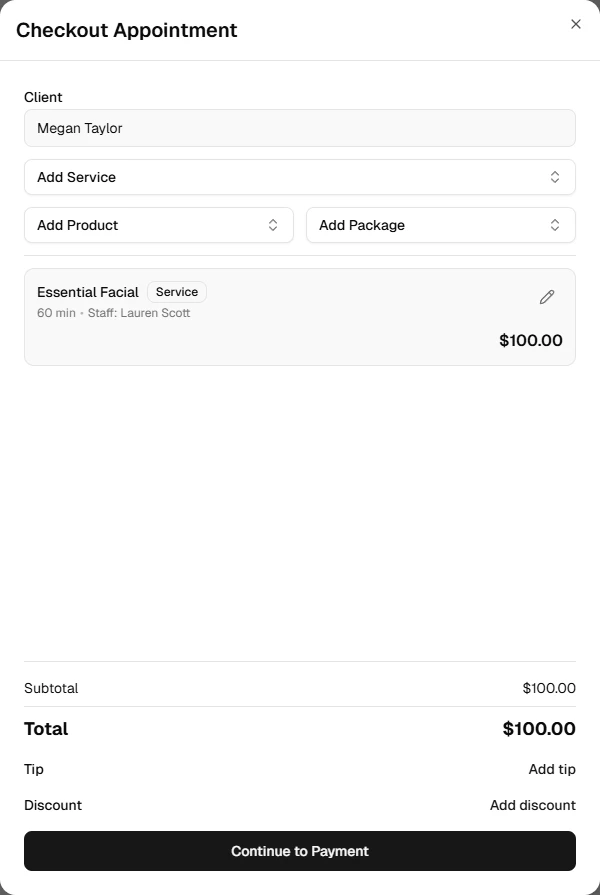
The checkout drawer opens with:
- Client – Set to the appointment’s client (and locked)
- Cart – Pre-filled with the appointment’s service(s), including staff assignment and price
- Event link – Cart items are linked to the appointment, so the sale is associated with it
Multiple Appointments on the Same Day
If the client has other appointments on the same day, a dialog may appear:
- Add all appointments? – Choose to add all of that day’s appointments to the cart, or
- Just this appointment – Check out only the current appointment
Each appointment’s service is added as a separate line item with the correct staff and price.
After Checkout
When the sale is completed:
- The appointment(s) are marked as paid (status is updated)
- The sale appears in Sales History
- You can print or email a receipt from the sale details
Adding More Items
You can add more services, products, or packages to the cart before completing payment. The appointment items stay in the cart and cannot be removed; you can only adjust quantity, staff, or price for those lines.