
Calendar Views
DaySpark offers three calendar views to match how you work — from day-to-day scheduling to long-term planning. Switch between them using the view selector in the toolbar.
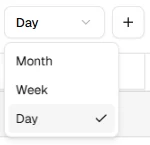
Week View (Default)
Week view is the default when you open the calendar. It shows a full week of appointments and time blocks across all staff, with 15-minute time slots and business hours clearly marked.
Use it for everyday operations: coordinating staff, planning the week ahead, and spotting gaps in the schedule.
Day View
Day view zooms into a single day with one column per staff member, making it easier to see precise timing, breaks, and blocks.
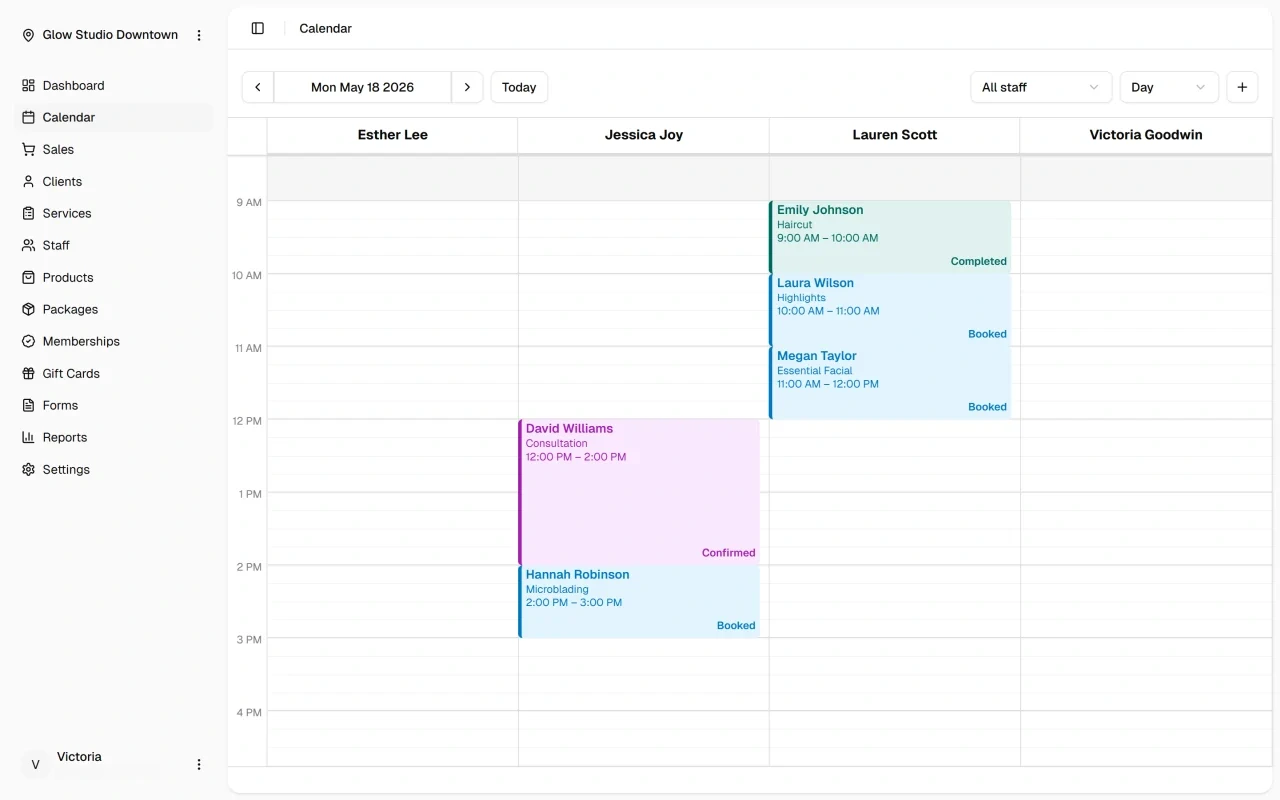
Switch to Day view when the schedule is busy — for walk-ins, detailed rescheduling, or coordinating coverage across staff.
Month View
Month view shows the full month at a glance. Appointments appear as compact entries so you can see patterns, busy periods, and availability without the detail of Week or Day view.
Use it for longer-range planning, checking availability, and scheduling time off.
Navigating the Calendar
Use the arrow buttons to move between weeks, days, or months, or click Today to jump back to the current date. The date picker lets you go to a specific day directly.
From the toolbar you can also add appointments or time blocks, filter by staff member, and search the schedule.
What's Next?
Quick Tip
Start your day in Week view for overall context, then switch to Day view during busy periods when you need to focus on specific details.