
Tax and Discounts
DaySpark lets you configure tax rates and pre-defined discounts from Settings → Tax & Discounts, then apply them automatically during checkout. Tax is split into separate rates for services and products, and discounts can be applied to the whole cart or to individual line items.
Setting Up Tax Rates
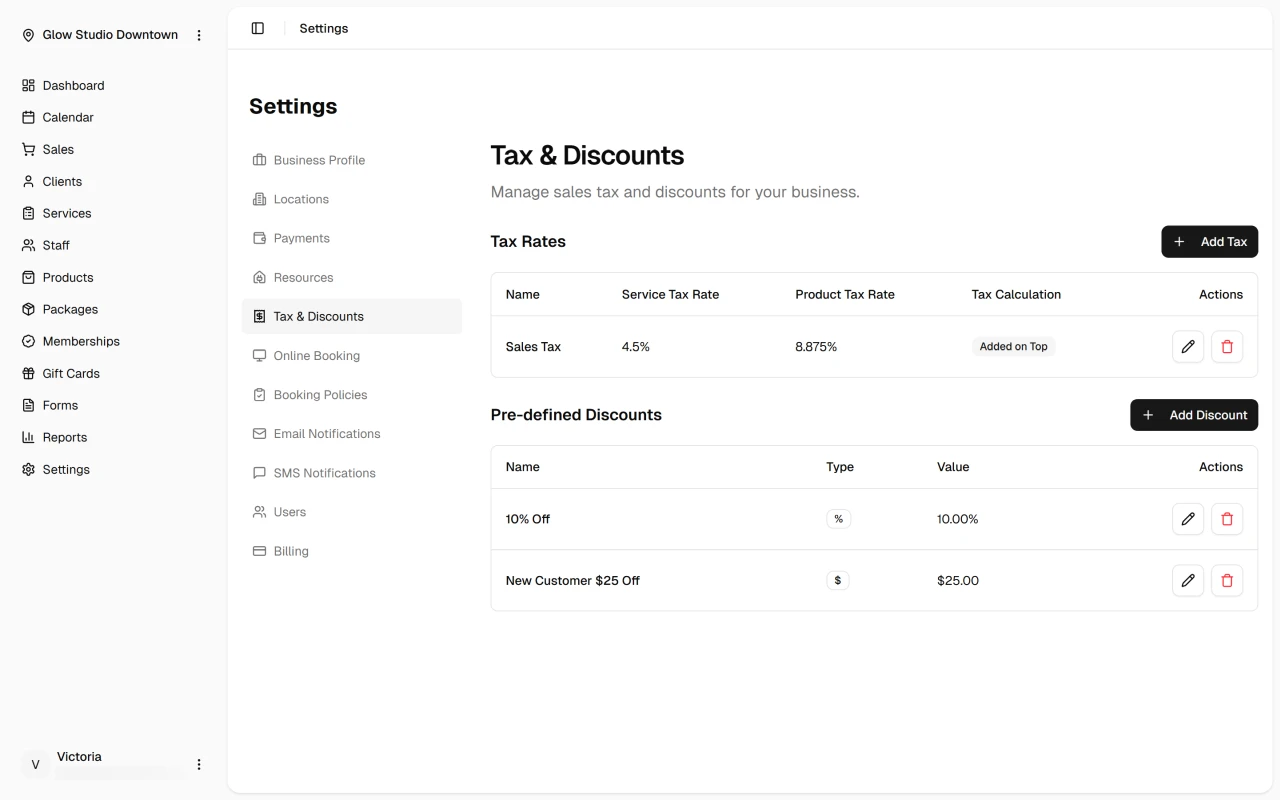
Create a Tax Rate
- Go to Settings → Tax & Discounts.
- In the Tax Rates section, click Add tax rate.
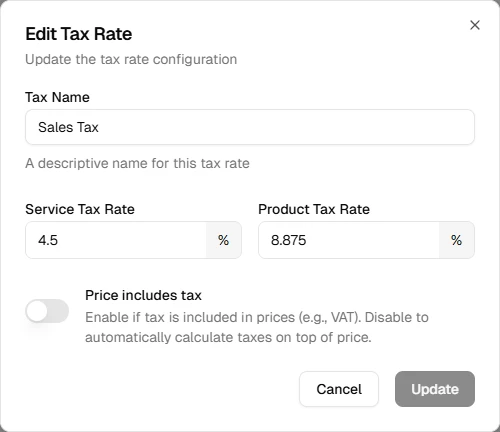
- Fill in the details:
- Name – A label for this tax configuration (e.g. "State Sales Tax", "HST").
- Service tax rate – The percentage applied to service line items (e.g.
8.25for 8.25%). - Product tax rate – The percentage applied to product line items. Leave at
0if products are tax-exempt. - Tax calculation mode – Choose how tax is handled at checkout:
- Added on top – Tax is calculated on the subtotal after discounts and added to the total (e.g. most North American sales tax).
- Price includes tax – Tax is extracted from the price rather than added on top (e.g. VAT or GST-inclusive pricing).
- Click Create.
Assign a Tax Rate to a Location
Tax rates are applied per location. Once created:
- Go to Settings → Locations and open the location you want to configure.

- In the Tax Rate field, select the tax rate you just created.
- Save the location.
From that point on, every sale processed at that location will use the assigned tax rates. Locations without a tax rate assigned will not calculate tax.
TIP
You can create different tax profiles for locations in different jurisdictions, then assign the appropriate profile to each location.
Editing and Deleting Tax Rates
- To edit a rate, click the pencil icon next to it in Settings → Tax & Discounts. Changes apply to future sales only.
- To delete a rate, click the trash icon and confirm. If the rate is assigned to a location, unassign it first.
Setting Up Pre-Defined Discounts
Pre-defined discounts are reusable discount presets your staff can quickly apply at checkout without entering values manually each time.
Create a Discount
- Go to Settings → Tax & Discounts.
- In the Discounts section, click Add discount.
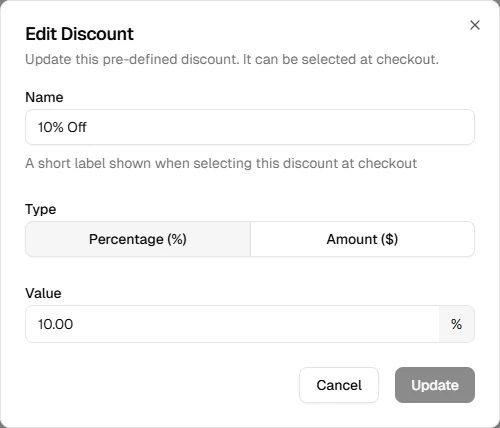
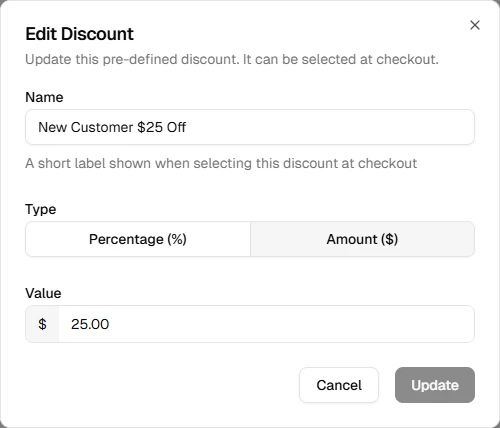
- Fill in the details:
- Name – A recognisable label (e.g. "Staff discount", "New client 20% off", "$10 off").
- Type – Choose Percentage or Fixed amount.
- Value – The discount amount (e.g.
20for 20% or10.00for $10.00).
- Click Create.
Pre-defined discounts appear as quick-select options in the discount dialog at checkout.
Editing and Deleting Discounts
Click the pencil icon to rename a discount or change its value. Click the trash icon to remove it. Removing a pre-defined discount doesn't affect sales that have already been processed.
Applying Discounts at Checkout
DaySpark supports two levels of discounts during checkout:
Cart-Level Discount
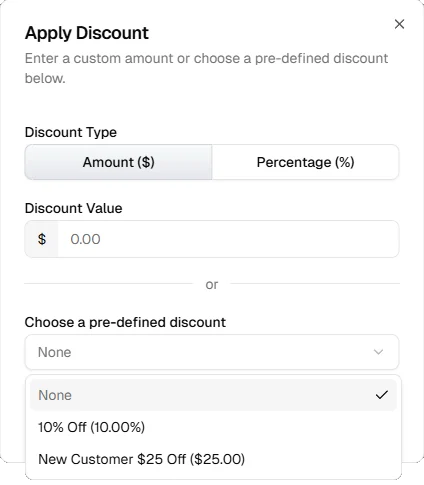
A single discount applied proportionally across the entire cart:
- In the Checkout step, click Add discount.
- Choose Percentage or Fixed amount and enter a value, or select one of your pre-defined discounts.
- Click Apply.
The discount is distributed proportionally between service and product subtotals for accurate tax calculation. It cannot exceed the cart subtotal.
Item-Level Discount or Custom Price
To adjust the price of a specific line item:
- Click the pencil icon on the cart item.
- Choose one of:
- Apply discount – Enter a fixed or percentage discount for that item only.
- Set custom price – Override the price for that item entirely.
- Click Apply.
Item-level and cart-level discounts can be combined.
How Totals Are Calculated
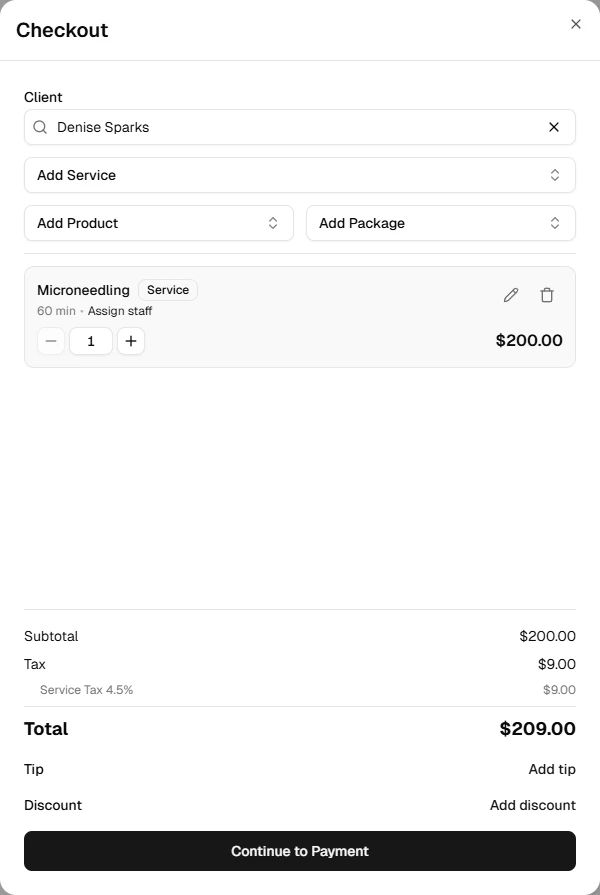
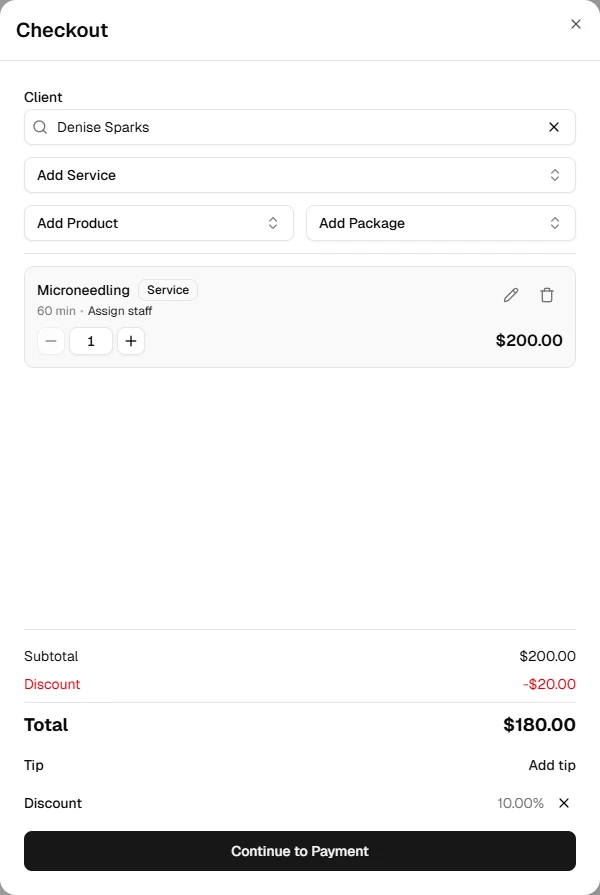
The totals block in the cart and payment screen reflects the following order of operations:
| Row | Description |
|---|---|
| Subtotal | Sum of all line item prices (after any item-level discounts) |
| Discount | Cart-level discount, if applied |
| Tax | Calculated on the subtotal after discount; split by service and product rates if both are non-zero. Shown as "Included" when using tax-inclusive mode |
| Tip | Added after tax; tips are not taxable |
| Total | Final amount due |
When service and product tax rates differ, the totals block shows separate Service Tax and Product Tax lines so the breakdown is transparent.
INFO
In tax-inclusive mode the line item prices are treated as already containing tax. The tax amount shown is extracted from the price, not added to it — the total does not change, but the tax is disclosed separately.
Tax and Discounts on Receipts and Sale Details
Both printed receipts and the Sale Details dialog display a full breakdown:
- Per line – Any item-level discount is shown below the line price.
- Totals section – Subtotal, discount (shown in red as a negative), tax with the effective rate, tip, and total.
- Email receipts – The same breakdown is included in the receipt email sent to the client.
The effective tax rate shown in sale details is the blended rate across service and product amounts after discounts are applied.
Related
- Processing a Sale – Full checkout walkthrough
- Sales History – View tax and discount breakdown per sale
- Receipts – Print or email receipts