
Selling Gift Cards
Gift cards are sold through your online booking page. No action is needed from staff — customers purchase them directly and the recipient receives their code by email.
Enabling Gift Card Sales
Before gift cards appear on your booking page, you need to enable them in Payment Settings:
- Go to Settings → Payments
- Find the location you want to enable gift cards for
- Under Gift Card Sales, toggle Enable gift card sales on
DaySpark Payments required
The gift card sales toggle only appears when DaySpark Payments is active for that location. If you haven't set it up yet, complete the onboarding in Settings → Payments first.
The Customer Experience
Once enabled, a Send a Gift Card button appears on your booking page below the services list.
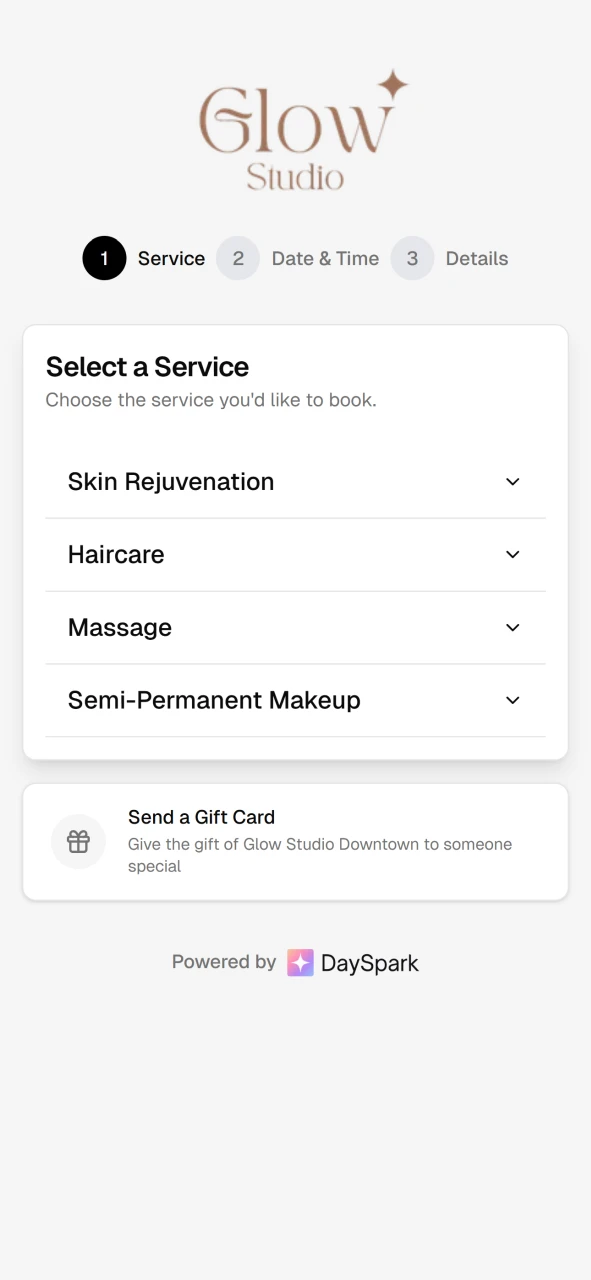
Here's how customers purchase a gift card:
Step 1 — Gift card details
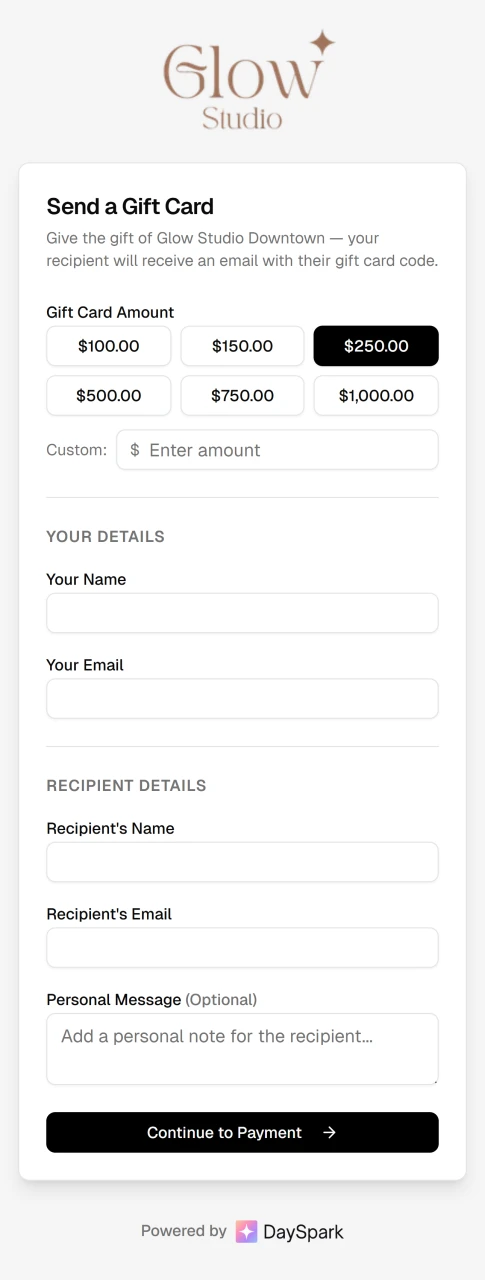
The customer fills out:
- Amount — choose from preset values ($100, $150, $250, $500, $750, $1,000) or enter a custom amount up to a maximum of $1,000.
- Their name and email — the purchaser's contact details
- Recipient's name and email — who the gift card is for
- Personal message — optional note that appears in the recipient's email
Step 2 — Payment
The customer pays securely using DaySpark Payments. Standard card payments are supported.
After Purchase
Once payment is confirmed:
- A unique gift card code is generated (e.g.
GIFT-ABCD-1234-EFGH) - The recipient receives an email with their code, the balance, and a personal message if one was included
- The gift card appears immediately in your Gift Cards management page
Disabling Gift Card Sales
To stop selling gift cards, toggle Enable gift card sales off in Settings → Payments. The button disappears from your booking page immediately. Existing gift cards are not affected — recipients can still redeem their codes.