
Managing Form Submissions
When clients complete your forms, their responses are stored in DaySpark for easy access and management. This guide will show you how to view and manage form submissions effectively.
Accessing Submissions
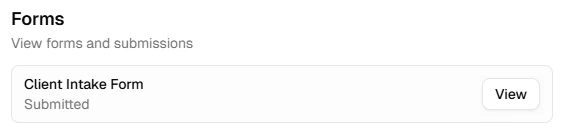
To view submissions for any form:
- Go to the Forms section
- Find the form you want to check
- Click "View Submissions" from the actions menu
You'll see a list of all submissions, ordered by date with the most recent first. Each submission shows:
- Submission date and time
- Client name
Viewing Submission Details
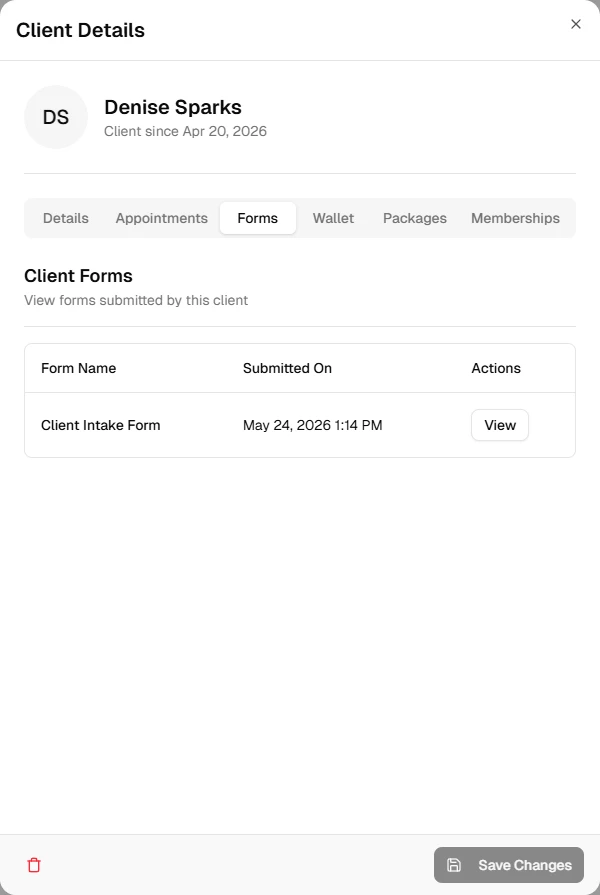
To see the complete details of any submission:
- Click on a submission in the list
- Review all responses in an easy-to-read format
- See when the form was submitted
- Check client information
This detailed view helps you quickly access the information you need when providing services.
Best Practices
To manage submissions effectively:
- Review submissions before each appointment to prepare personalized service delivery
- Use one-time forms for intake information to avoid asking clients to repeat the same details
- Check submission dates to identify which clients may need follow-up reminders
- Export or save important client information from submissions to your client management system
- Assign forms to specific services so clients automatically receive the right forms with their booking confirmations
What's Next?
Learn more about:
Quick Tip
Review form submissions before client appointments to ensure you have all necessary information and can provide the best possible service.