
Editing an Existing Client
Open a client from the Clients list to view or update their profile, appointments, notes, and more.
Open a profile
- Go to Clients.
- Click a client in the list, or search by first name, last name, email, or phone.
Their profile opens in a drawer on the right.
Profile tabs
Tabs run along the top of the drawer.
| Tab | What it shows |
|---|---|
| Details | Contact info, profile notes, and notification preferences |
| Appointments | Upcoming and past bookings; block or unblock online booking |
| Notes | Appointment notes — one row per appointment |
| Forms | Submitted forms (Growth+ plans) |
| Wallet | Saved payment methods at this location (Sales + Stripe) |
| Packages | Purchased packages and remaining sessions (Sales) |
Everyone sees Details, Appointments, and Notes. Forms, Wallet, and Packages appear only when your plan and setup support them.
Plan and payment requirements
- Forms — Growth plan or higher
- Wallet and Packages — Sales enabled and Stripe connected for the location. See the Sales overview.
Details tab
Edit any field directly on this tab.
- Notes (textarea on Details) — General notes about the client. These stay on the profile and are separate from per-appointment notes on the Notes tab.
- Notification preferences — Turn Email and SMS reminders on or off.
Click Save Changes at the bottom when you are done. A confirmation appears when the update is saved.
Appointments tab
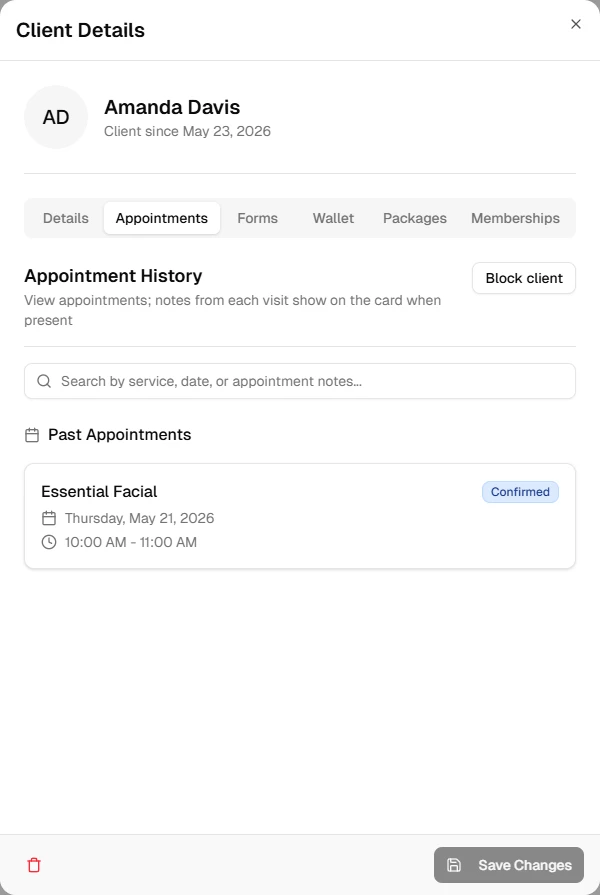
Browse upcoming and past appointments. Click an appointment to open it.
Block online booking
To stop a client from booking through your online flow:
- On the Appointments tab, click Block client in the header.
- Confirm in the dialog.
Blocked clients cannot book online, but you can still book them internally. Use the same control to unblock them later.
Notes tab
Each row is an appointment that has notes. Use the edit action on a row to open that appointment and update its notes.
For long-lived preferences (allergies, standing requests, and so on), use profile notes on the Details tab instead.
Forms, Wallet, and Packages
- Forms — Review forms this client has submitted.
- Wallet — Saved cards and payment methods (when Sales and Stripe are set up). See Client Wallet.
- Packages — Purchases and remaining session counts.
Delete a client
- Click the trash icon at the bottom-left of the drawer.
- Confirm in the dialog.
This cannot be undone
Deleting a client removes their profile information. Appointment history is kept for reporting.
What's next?
- Schedule a new appointment
- Review booking history or online-booking access on the Appointments tab
- Update profile notes on Details or appointment notes on the Notes tab