
Redeeming a Package at Checkout
When a client with an active package comes in for a covered service, select Package as the payment method to draw down their balance. No additional payment is required for services covered by the package.
Steps
- Open checkout and select the client
- Add the service(s) to the cart — the service must match one included in the client's package
- Proceed to Complete Payment
- If the client has an applicable package, the Package option is shown in the payment method grid and selected by default
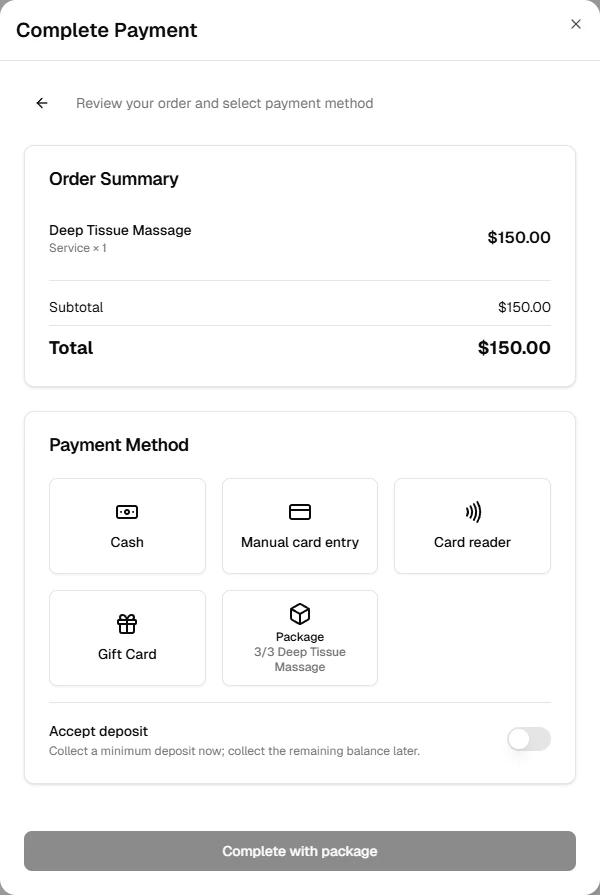
- Confirm which package to use (if the client has more than one applicable package, you can select multiple)
- Click Complete with package
How Coverage Works
- Packages apply only to services in the cart — products are not covered
- The service must exactly match a service included in the package plan
- Coverage is applied per session: if the client has 2 credits for a service and books it twice, 2 credits are deducted
- If the package covers fewer sessions than are in the cart, only the matched quantity is covered
Partial Coverage
If the package does not cover the full cart amount (e.g., the client also has products, or more sessions than they have credits for), the remaining balance must be paid separately:
- Select the package as before
- The order summary shows Package covers (amount covered) and Remaining (amount still due)
- Choose how to pay the remainder — Cash, Card on file, or Manual card entry
- Click Complete Sale
Multiple Packages
If a client has more than one applicable package, you can select multiple. Coverage is allocated in the order you select them — the first selected package's credits are used first.
After Redemption
- The client's session balance is updated immediately on the client's Packages tab
- The sale appears in Sales History with payment method shown as Package