
Managing Staff Locations
Assign staff members to specific locations where they'll be available to work. This ensures clients can book services with the right staff at the right location.
Assigning Staff to Locations
Step 1: Access Staff Management
- Navigate to the Staff page in DaySpark.
- Click on any staff member's name to open their profile.
Step 2: Go to Locations Tab
- In the staff member's profile, click on the "Locations" tab.
- You'll see a list of all available locations with checkboxes.
Step 3: Select Locations
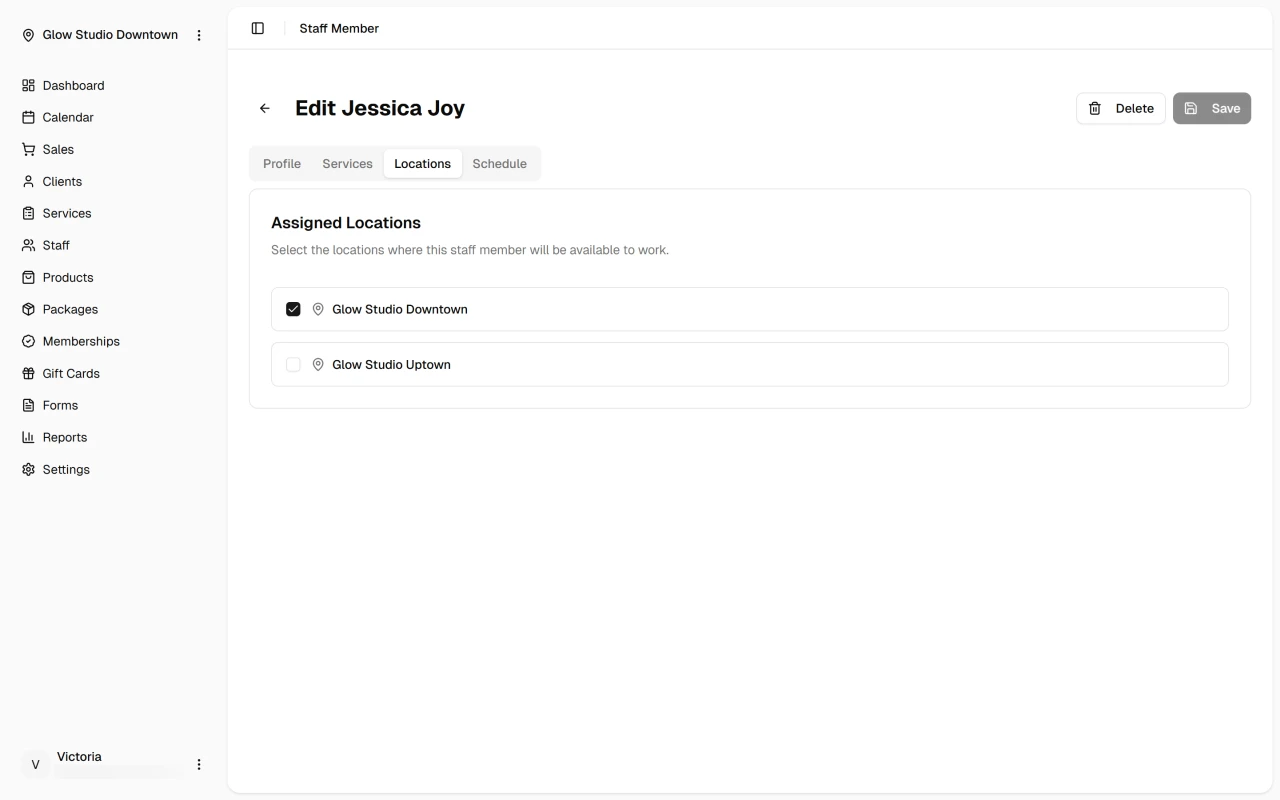
- Check the boxes next to the locations where this staff member will work.
- Each location shows a map pin icon and location name.
- You can select multiple locations if the staff member works at different sites.
Step 4: Save Changes
- Click "Save" to apply the location assignments.
- The staff member will now be available for booking at the selected locations.
What's Next?
After assigning locations:
Quick Tip
Consider creating location specialists who primarily work at one site, supported by flexible team members who can cover multiple locations as needed.