
Creating and Managing Packages
Package plans are managed from Packages in the sidebar. Each plan defines the name, price, and which services (and how many sessions) are included.
Creating a Package
- Go to Packages in the sidebar
- Click New Package
- Fill in the package details:
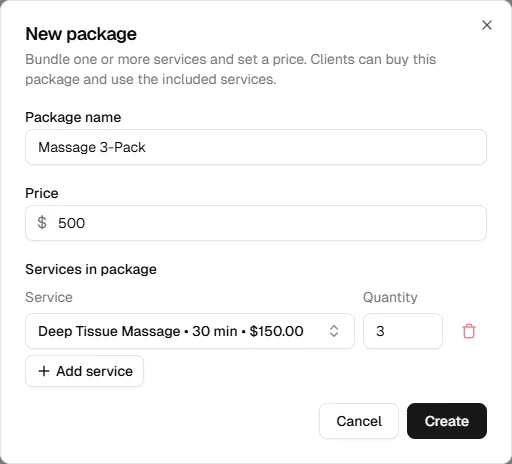
- Name – Displayed at checkout and on receipts
- Price – The amount the client pays when purchasing the package
- Add one or more services to the package:
- Select the service
- Set the quantity (number of sessions included)
- Click Save
A package must include at least one service with a quantity of at least 1.
Editing a Package
- In Packages, find the package and click to open it
- Update the name, price, or services
- Click Save
WARNING
Editing a package only affects new sales of that package. Existing client packages (already purchased) are not changed — the client retains whatever balance they had.
Deleting a Package
Packages can be archived from the Packages page. Archived packages are no longer available for sale but existing client balances are unaffected and can still be redeemed.
Viewing a Client's Package Balance
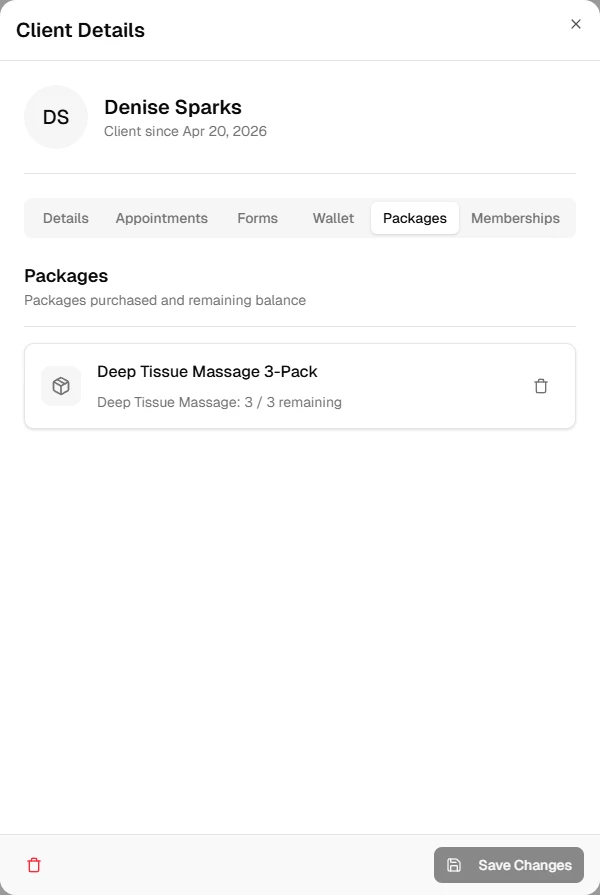
To see what packages a client has purchased and how many sessions remain:
- Open Clients and select the client
- Click the Packages tab
The tab shows all packages ever purchased, remaining session counts per service, and purchase history.