
Business Settings
Go to Settings → Business Profile to set your business name, website, logo, and brand color. These appear on your online booking page and in client-facing emails.
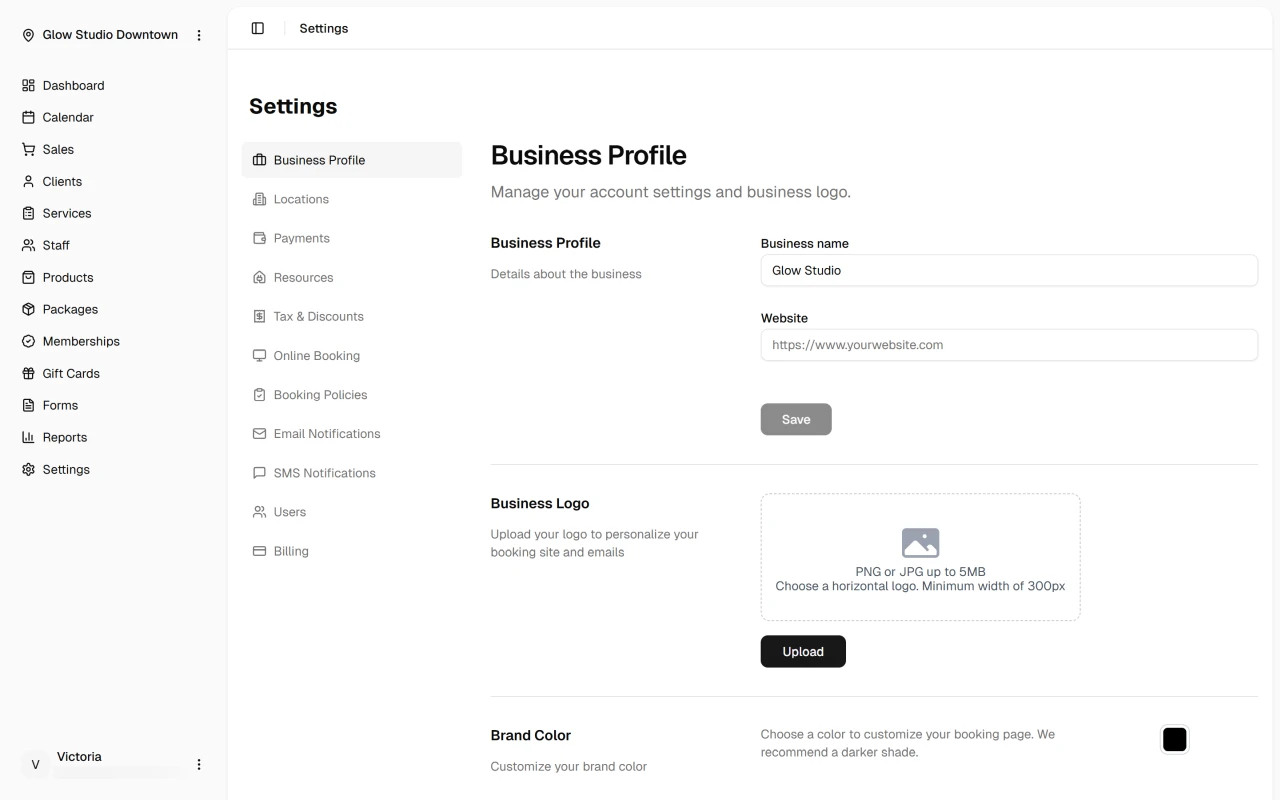
Business profile
- Business name — Shown on your booking page and in communications
- Website — Optional link on your booking page (must start with
https://)
Click Save after updating either field.
Business logo
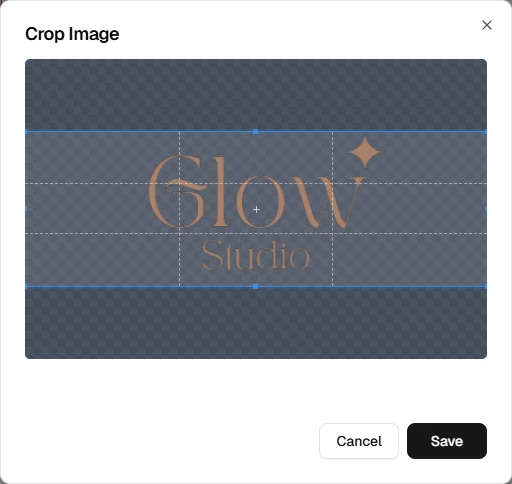
Upload a horizontal logo to personalize your booking page and emails.
- PNG or JPG, up to 5 MB
- Minimum width of 300px
- After upload, crop the image and save
Use Remove to delete the current logo.
Brand color
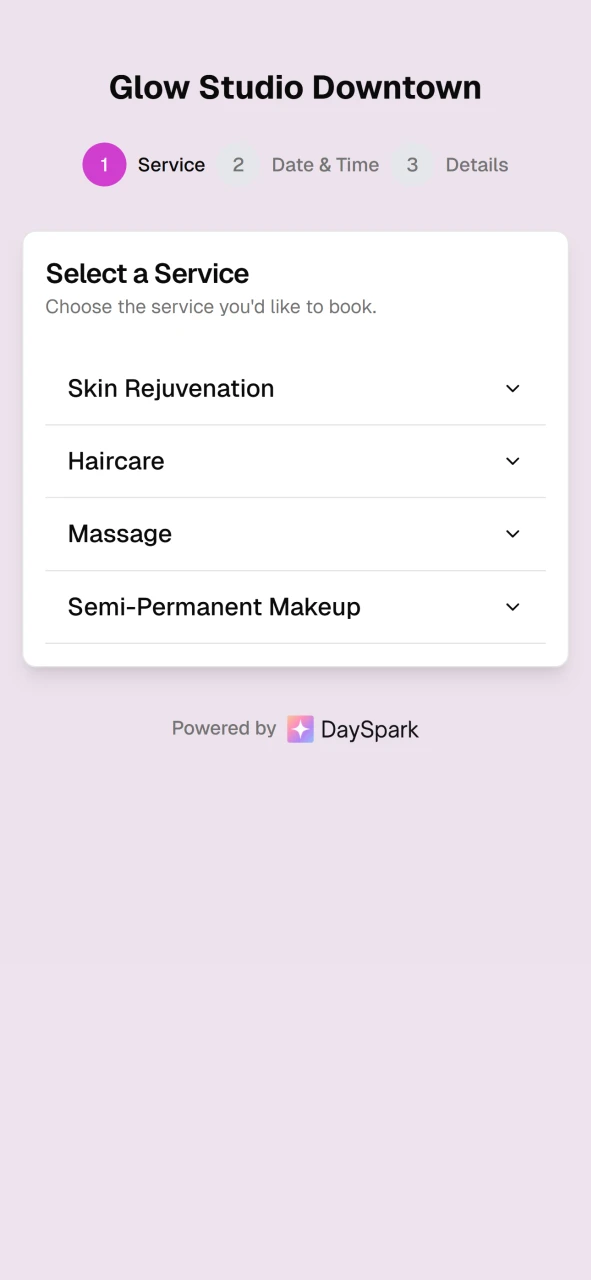
Your brand color accents the online booking page — headers, buttons, and highlights.
We recommend a darker color. Light colors can make white text hard to read on the booking page.
To set your color:
- Click the color swatch to open the picker
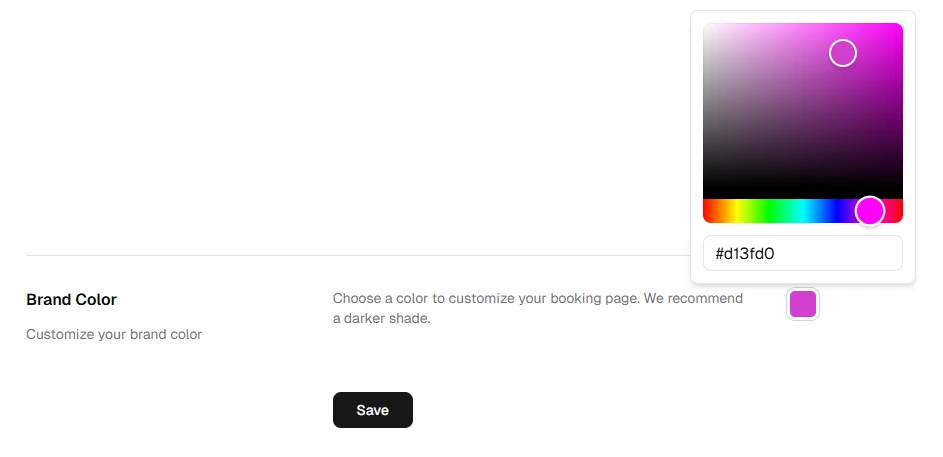
- Choose a color with the picker, or type a hex code (for example,
#1a2b3c) - Click Save
What's next?
- Location settings — Hours, address, and location-specific details
- Notification settings
- Online booking