
Scheduling Appointments
Creating and managing appointments is a core part of your daily operations. DaySpark gives you a few ways to schedule, then a single form to capture everything you need.
Creating New Appointments
From the toolbar — best when scheduling on the phone:
- Click Add (Plus Button) and select Appointment
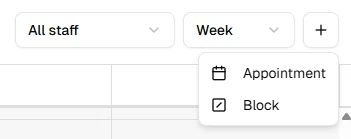
- Fill in the client, service, staff, and time
- Save to create the appointment
From the calendar — pick the start time using either option below:
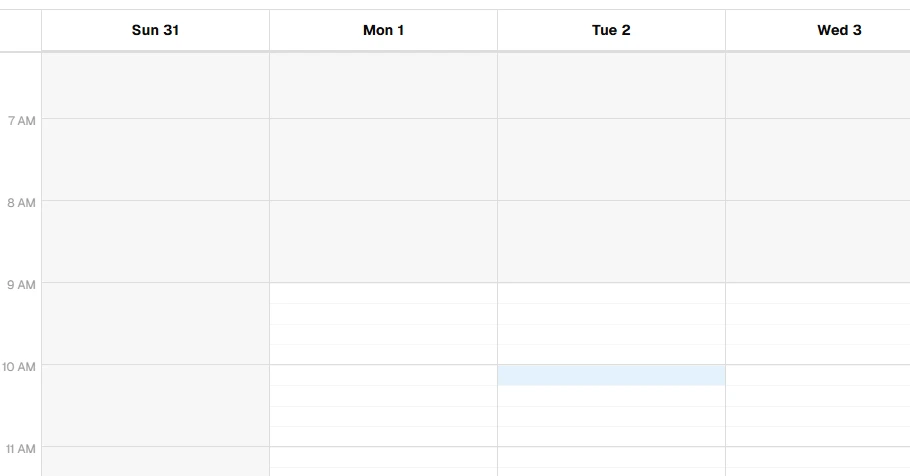
Click a time slot — click an empty slot on the calendar to open the appointment form. A light blue hover highlight shows which slot you're on.
Drag to set a duration — click and drag across empty slots to select a start time and duration. The form opens with those times filled in.
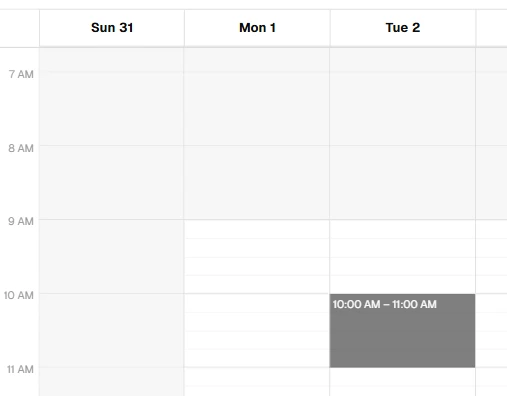
Complete the form and save.
The Appointment Drawer
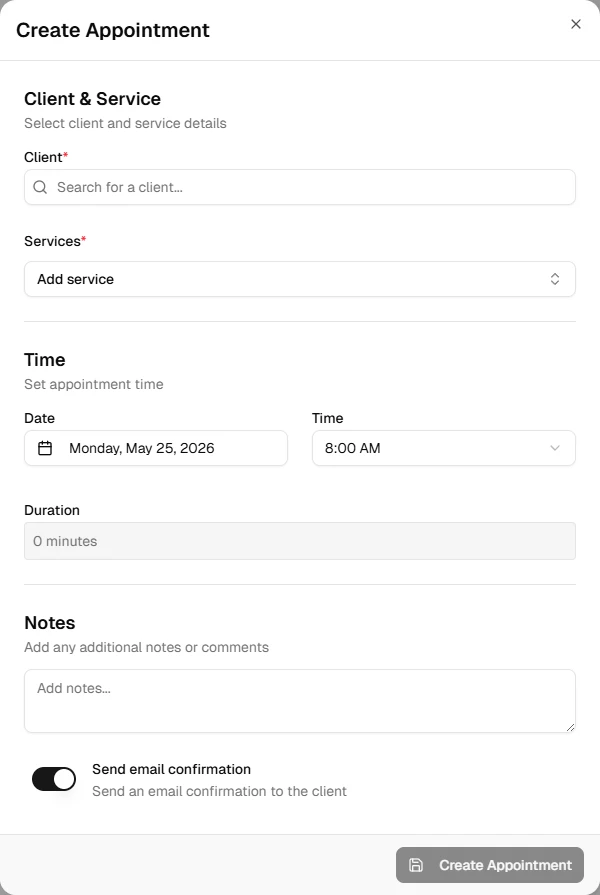
The appointment drawer opens for new and existing appointments. Fill in the essentials first:
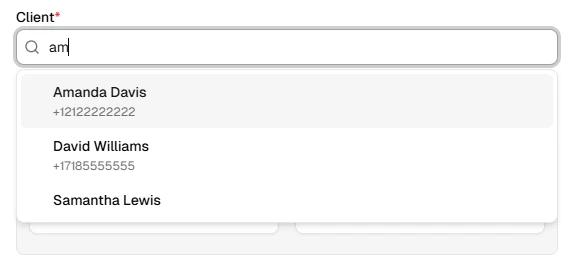
Choose the client, service, and staff member, then confirm the date and time. You can add optional notes, adjust pricing, and set the appointment status. Toggle Send notifications to email the client when the appointment is created or updated.
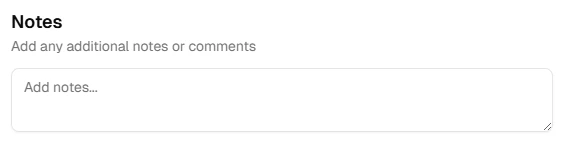
When editing an existing appointment, assigned forms appear in the Forms section — see Forms for details.
Booking multiple services at once
Add up to 5 services to one appointment using Add service in the drawer. Each service is booked back-to-back in the order you add them — the second starts when the first ends, and so on. Each service can have its own staff member, and Duration shows the combined total.
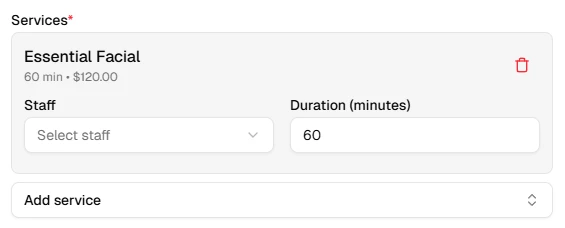
Recurring appointments support only one service — enable Make recurring when booking a single service. See Recurring events.
Managing Existing Appointments
To edit an appointment:
- Click the appointment in the calendar
- Update the details in the form
- Save your changes
You can also drag an appointment to a new time or resize it from the bottom edge — changes save automatically. For more on dragging, see Drag and drop.
Appointment Statuses
Track where each appointment stands:
| Status | Meaning |
|---|---|
| Booked | Scheduled, not yet confirmed |
| Confirmed | Client has confirmed |
| Completed | Service was delivered |
| No Show | Client did not attend |
| Canceled | Appointment was canceled |