
Sales History
The Sales page lists past transactions. Search and filter the table, open a sale for details, and collect any remaining balance.
Sales table
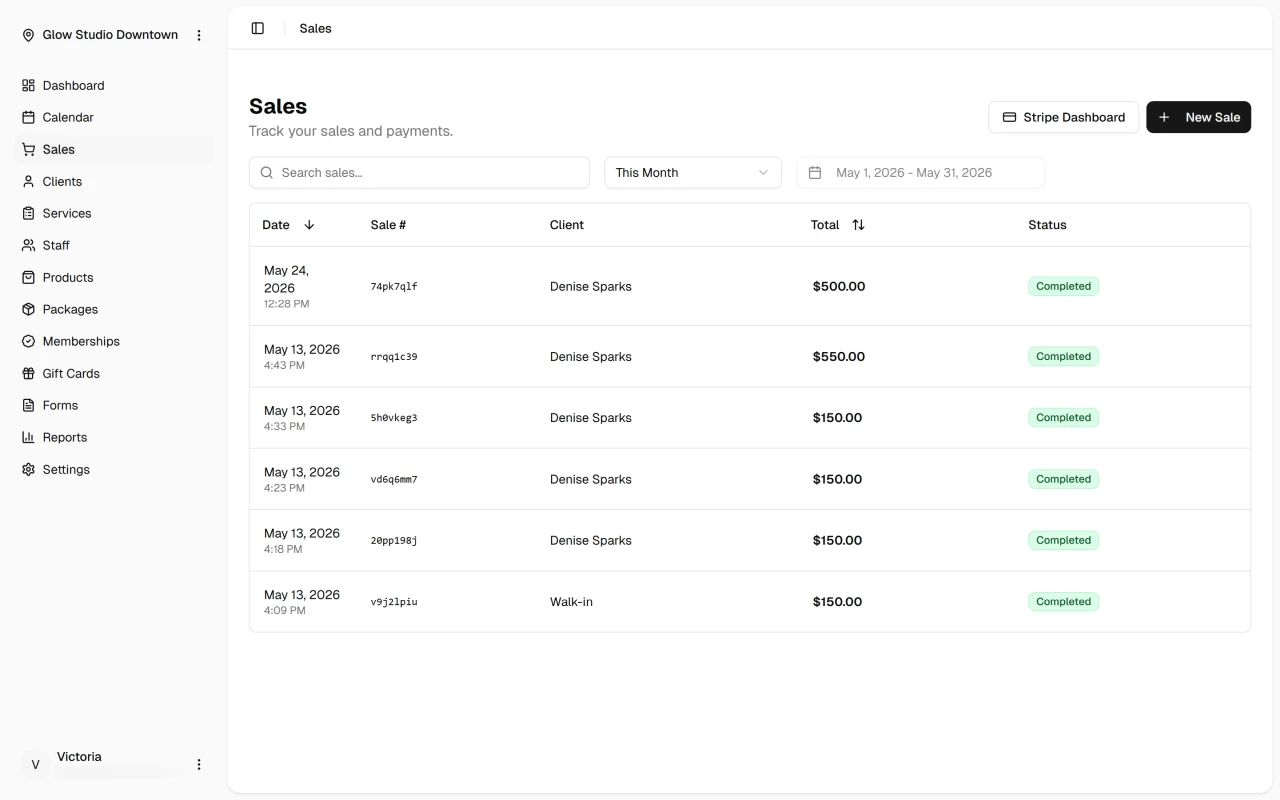
Each row shows the date, sale ID (last 8 characters), client (or Walk-in), total, and status.
Find sales
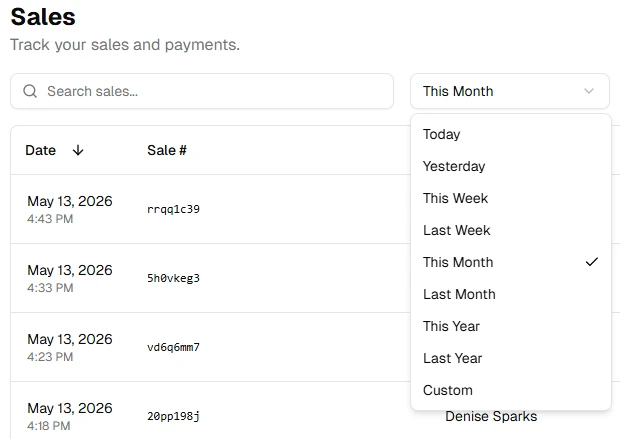
- Search — Client name, sale ID, and other fields
- Date range — Presets like This month or Last 7 days, or a custom range
- Sort — Click Date, Total, or Payment method column headers
Lists of more than 50 sales use Previous and Next at the bottom.
Statuses
| Status | Meaning |
|---|---|
| Completed | Fully paid |
| Deposit received | Partial payment; balance still due |
| Invoiced | Payment link sent; waiting on client |
| Refunded | Fully refunded |
| Partially refunded | Part of the payment refunded |
| Disputed | Cardholder dispute — response may be required |
| Voided | Sale voided |
Card refunds and disputes are covered in Refunds and disputes.
Sale details
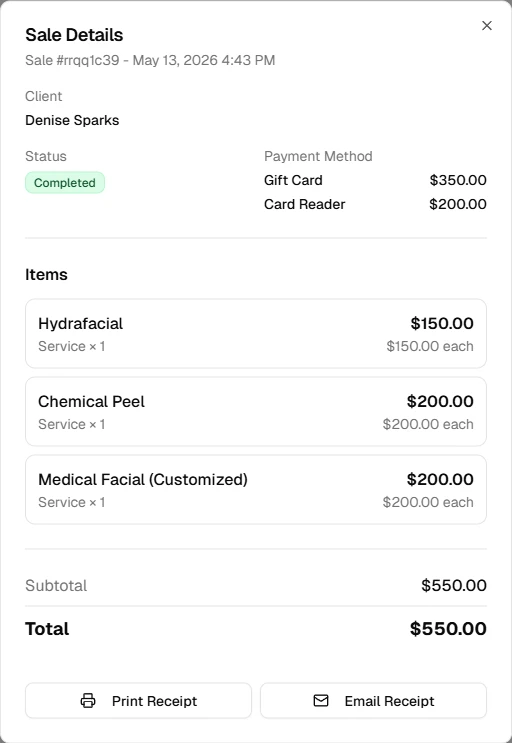
Click a row to open Sale Details. The dialog shows status, payment method, line items, totals, refunds, and notes.
For Deposit received sales, it also shows amount paid and balance due.
Available actions depend on status:
- Collect remaining balance — Add cash and/or card tenders (up to 5), then click Complete payment
- Print Receipt — Printable receipt in a new tab
- Email Receipt — Sends to the client’s email on file