
User Management
Go to Settings → Users to invite staff to DaySpark and control what they can access. Only admin users can manage user access.
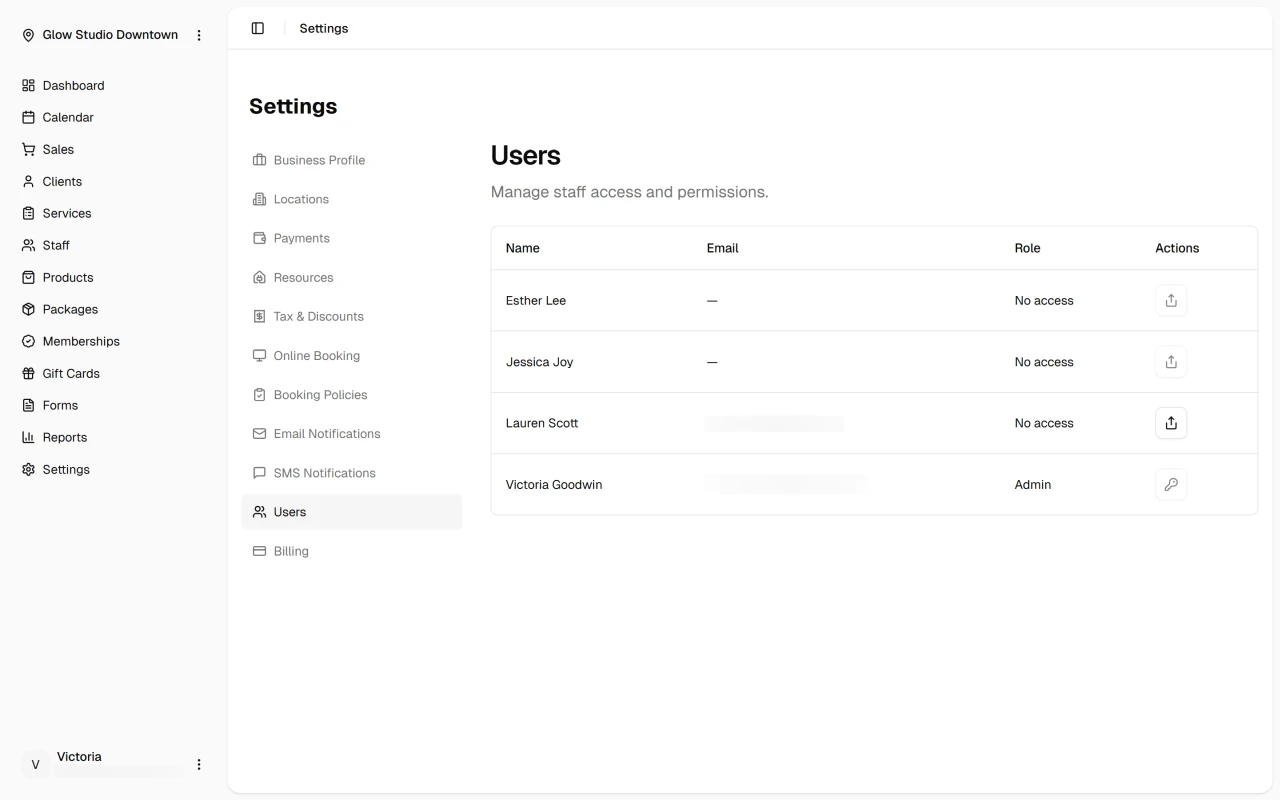
The table lists your staff members, their email, role, and available actions.
Invite a user
Staff must exist in DaySpark before you can invite them. Add the person under Staff first, and make sure they have an email address on file.
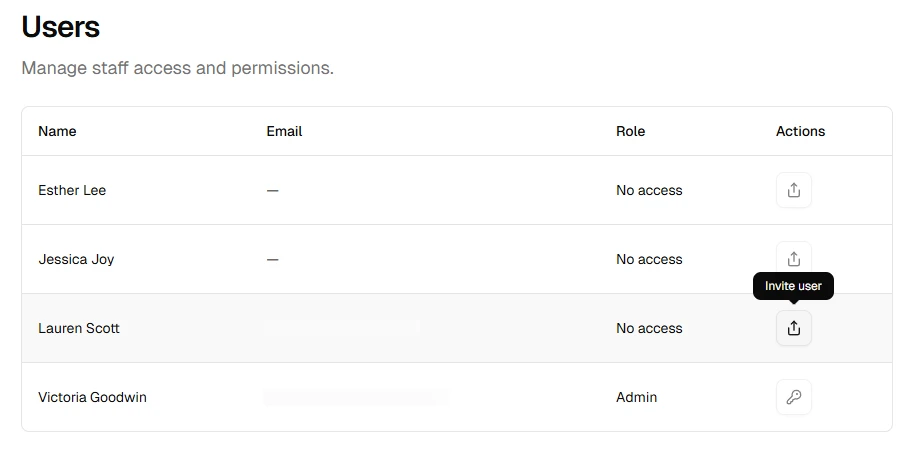
- Find the staff member with No access
- Click the invite icon
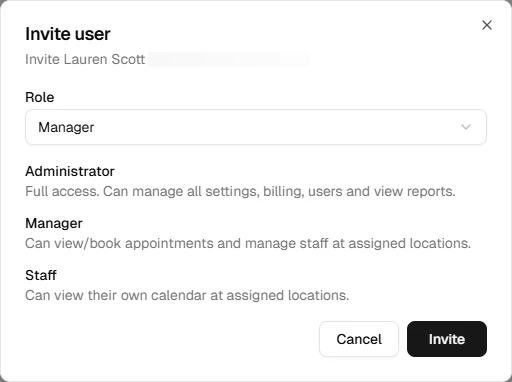
- Select a role and send the invitation
Pending invitations show an Invite sent badge. Click Cancel invitation to revoke a pending invite before it expires.
Change or remove access
For users who already have access, click Modify access to change their role or revoke access entirely. You cannot change your own access.
Roles
| Role | Access |
|---|---|
| Administrator | Full access — settings, billing, users, and reports |
| Manager | View and book appointments; manage staff at assigned locations |
| Staff | View their own calendar at assigned locations |
What's next?
- Staff — add team members before inviting them
- Location settings
- Notification settings